
Autocorrect Windows: Your Guide to System-Wide Correction in 2026
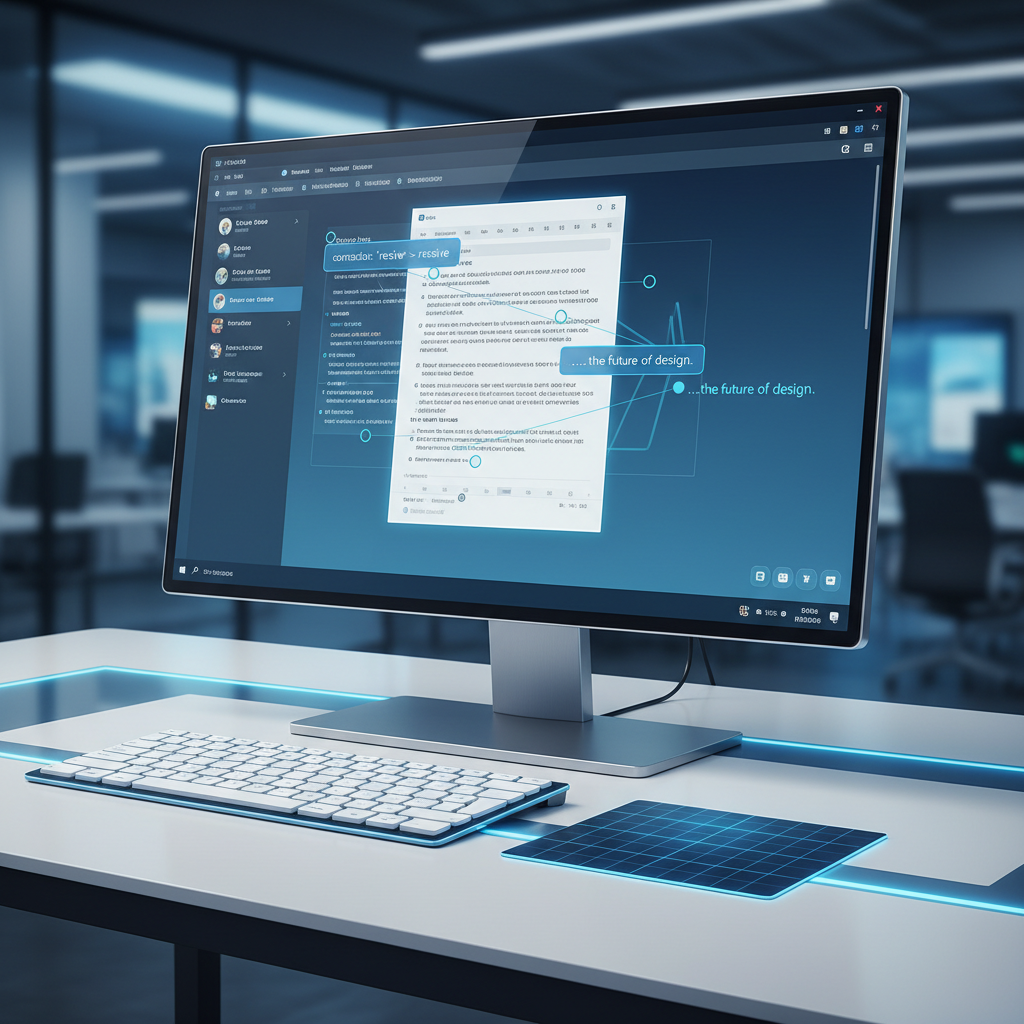
Discover how advanced autocorrect tools revolutionize typing on Windows in 2026, offering system-wide correction, predictive text, and grammar checks across all applications. Learn why traditional Windows autocorrect falls short and how smart writing assistants boost productivity.
Key Takeaways
- System-Wide Autocorrect is Essential: Traditional Windows autocorrect is often fragmented and inconsistent, making system-wide solutions crucial for modern productivity.
- Beyond Basic Spelling: Effective writing assistants in 2026 offer predictive text, grammar correction, AI writing, and voice typing, not just simple typo fixes.
- Privacy Matters: Choose tools that prioritize local processing for typing features to protect your data.
- AutoCorrect PC Leads the Way: For comprehensive, system-wide writing assistance on Windows, AutoCorrect PC provides an integrated solution across all applications.
- Boost Productivity: By reducing typing effort and correcting errors in real-time, advanced autocorrect tools significantly enhance writing speed and quality.
In the fast-paced digital world of 2026, clear and efficient communication is paramount. Whether you're drafting an important business email, crafting creative content, or simply chatting with friends, typos and grammatical errors can undermine your message and slow you down. While Windows has offered basic spell-checking for years, the demand for sophisticated, system-wide writing assistance has never been higher. This guide explores the evolution of autocorrect on Windows, highlighting its current limitations and showcasing advanced solutions that promise to revolutionize your typing experience. We'll delve into how modern tools go beyond simple corrections, offering predictive text, grammar checks, AI writing capabilities, and even voice typing, all designed to keep you in your flow.
The Evolution of Autocorrect on Windows: From Basic to Brilliant
For many years, the concept of autocorrect on Windows was largely confined to specific applications like Microsoft Word. Users would find their common misspellings automatically fixed within a document, but venture outside that application, and the assistance would vanish. This fragmented approach meant that while writing a report in Word might be seamless, drafting an email in Outlook or typing notes in Notepad often left users without the same level of support. The built-in Windows features were, and to some extent still are, inconsistent, offering basic correction in some text fields but completely absent in others. This created a disjointed experience, forcing users to adapt to varying levels of assistance depending on where they were typing.
The landscape began to shift as digital communication became more pervasive and diverse. The rise of chat applications, web-based platforms, and a multitude of desktop tools meant that a truly effective writing assistant needed to operate system-wide. The limitations of application-specific autocorrect became glaringly obvious. Imagine moving from a word processor to a project management tool, then to a coding environment, and losing your writing support each time. This inefficiency spurred the development of more comprehensive solutions, moving beyond simple spell-checking to encompass a broader spectrum of writing aids.

Understanding the Limitations of Native Windows Autocorrect
While Windows 10 and Windows 11 have introduced some improvements to their native autocorrect and spell-checking capabilities, they still fall short of truly system-wide, intelligent assistance. You can enable basic spell-checking and autocorrection through the Settings app, typically under "Time & language" and then "Typing." Here, you have options to highlight misspelled words and automatically correct them. However, this functionality is often inconsistent across different applications. For instance, it might work well in some default Windows apps but fail to provide any support in third-party software, web browsers, or specialized professional tools.
One significant limitation is the lack of a centralized, easily editable dictionary for autocorrect windows. While you can often add words to a personal dictionary within individual Microsoft Office applications, managing a universal list of custom words or common abbreviations across the entire operating system remains a challenge. This means that if you frequently use industry-specific jargon or unique proper nouns, you might find yourself repeatedly correcting the same words in different contexts. Furthermore, native Windows autocorrect primarily focuses on spelling errors. It generally lacks sophisticated grammar correction, predictive text, or AI writing features that have become standard in advanced writing tools. This basic approach, while helpful for minor typos, doesn't address the broader needs of modern writers who require comprehensive support to enhance their speed, accuracy, and overall writing quality.
"Native Windows autocorrect is like having a basic spell-checker from a decade ago. It catches the obvious, but misses the nuances and advanced features that today's users expect for true productivity."
The Rise of Smart Writing Assistants for Windows
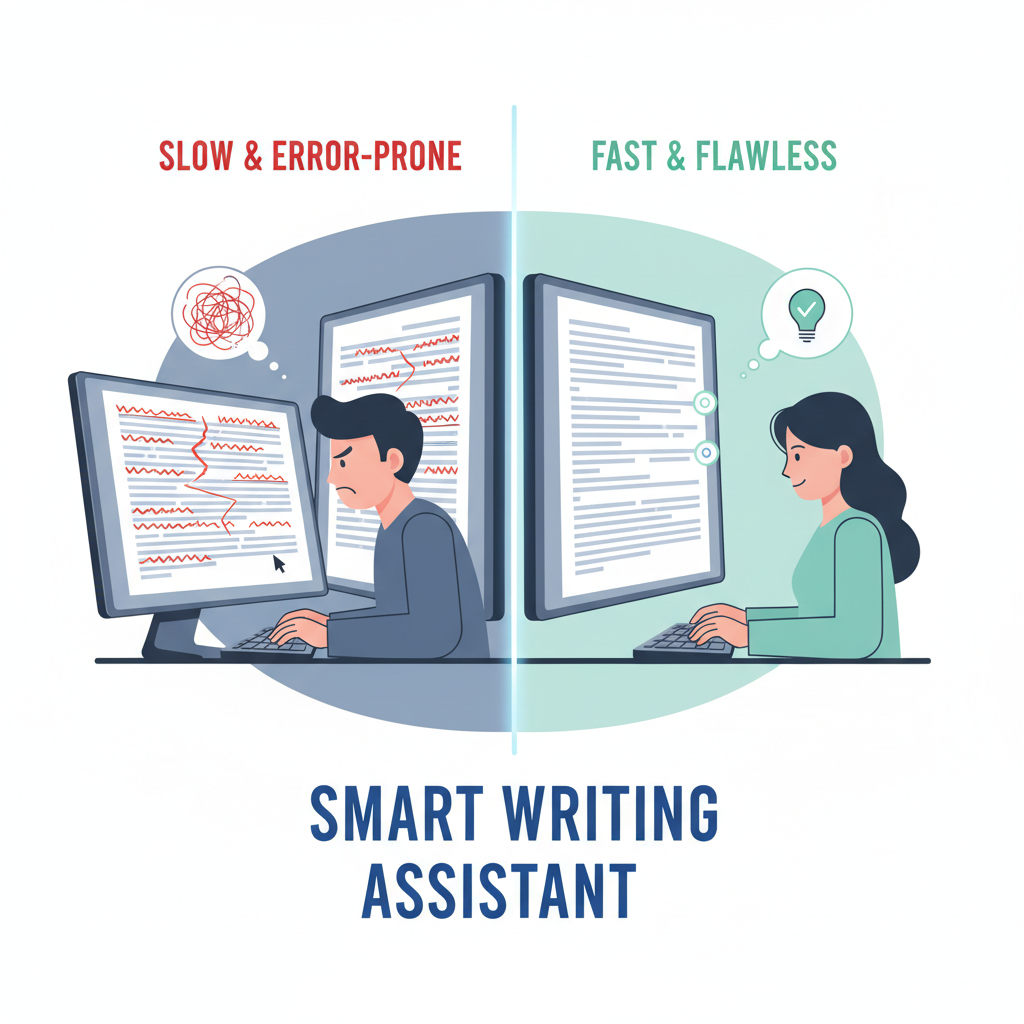
The shortcomings of native Windows autocorrect have paved the way for a new generation of smart writing assistants. These powerful tools are designed to fill the gaps, offering a rich suite of features that transform the typing experience across all Windows applications. They understand that writing isn't just about fixing typos, but about streamlining the entire process from thought to text. The goal is to minimize friction, reduce keystrokes, and ensure clarity, regardless of where you're typing.
These smart assistants integrate deeply with the Windows operating system, providing a consistent and robust experience. They don't just correct mistakes; they proactively help you write better and faster. Imagine starting a word and having the system instantly suggest its completion, or finishing a sentence and seeing intelligent predictions for your next words. This level of predictive text significantly boosts typing speed and reduces mental effort. Beyond predictions, these tools offer real-time grammar correction, identifying complex errors that simple spell-checkers would miss. They can even analyze sentence structure and suggest stylistic improvements, elevating the quality of your writing without requiring you to switch between applications or copy-paste text into external checkers.
Key Features of a Modern Windows Writing Assistant
In 2026, a truly effective Windows writing assistant goes far beyond simple typo correction. It integrates a suite of advanced features designed to enhance every aspect of your typing and writing workflow.
- System-Wide Autocorrect: This is the cornerstone. A modern assistant corrects misspelled words automatically as you type, not just in specific programs like Microsoft Word, but in any application, text field, or browser window on your Windows desktop. This consistency is crucial for maintaining flow and productivity.
- Word Completion and Prediction: As you type, the assistant intelligently suggests completions for the current word and predicts the most likely next words. This feature drastically reduces keystrokes and typing time, allowing you to articulate your thoughts more quickly. For example, typing "resp" might suggest "responsible" or "response," and after "I am writing to," it might suggest "inform you" or "request."
- Real-time Grammar Correction: Beyond spelling, these tools catch grammar mistakes at the sentence level. They can identify issues like subject-verb agreement, tense inconsistencies, punctuation errors, and even provide stylistic suggestions. The best part is that these fixes are often applied in context, eliminating the need to copy and paste text into a separate grammar checker.
- AI Writing and Generation: This is where modern writing assistants truly shine. With AI integration, you can generate, rewrite, or expand text directly from a simple prompt or from selected text. Need to rephrase a sentence for clarity? Want to brainstorm ideas for a paragraph? The AI can assist, inserting results directly into your current application. This feature is a game-changer for content creators, students, and business professionals alike.
- Voice Typing (Speech to Text): For ultimate hands-free productivity or accessibility needs, voice typing allows you to speak your thoughts and have them transcribed directly into any application. This is particularly useful for long-form writing, brainstorming, or when physical typing is inconvenient or challenging.
- Auto Replacement and Text Expanders: Many advanced tools allow you to set up custom auto-replacement rules or text expanders. For instance, typing "eml" could automatically expand to your full email address, or "sig" could insert your complete professional signature. This saves countless keystrokes for frequently used phrases, boilerplate text, or complex terms.
AutoCorrect PC: Your Smart Writing Assistant for Windows
When it comes to comprehensive, system-wide writing assistance on Windows, AutoCorrect PC stands out as a leading solution in 2026. Designed specifically to enhance productivity and accuracy across every application, it addresses the core limitations of native Windows tools and offers a powerful suite of features for modern users. Unlike fragmented solutions that only work in browsers or specific word processors, AutoCorrect PC integrates seamlessly into your entire Windows environment.
This smart writing assistant brings together all the essential tools you need to type faster and cleaner. Its core strength lies in its system-wide autocorrect, ensuring that misspelled words are corrected automatically as you type, whether you're in an email client, a chat application, a coding environment, or any other text field on your desktop. But it doesn't stop there. AutoCorrect PC provides intelligent word predictions and word completion, suggesting the most likely next words and instantly finishing your current word, drastically reducing your typing effort.
Furthermore, AutoCorrect PC includes robust grammar correction, catching complex grammatical errors in real-time and offering clean fixes in context. This eliminates the need to constantly switch between applications for proofreading. For those who leverage artificial intelligence in their workflow, the AI writing feature allows you to generate, rewrite, or expand text directly within your application, from simple prompts or selected content. Finally, its voice typing capability transforms your spoken words into text, offering a convenient alternative to traditional typing. By centralizing these powerful features, AutoCorrect PC ensures a consistent, efficient, and intelligent writing experience across all your Windows activities.
Privacy and Performance: What to Look For
In an era where data privacy is paramount, choosing a writing assistant that respects your personal information is crucial. Many cloud-based writing tools process your text on remote servers, which can raise concerns about data security and confidentiality. When evaluating a system-wide autocorrect solution for Windows, prioritize tools that emphasize privacy-first design. This means that core typing features, such as autocorrect, word completion, next-word prediction, speech transcription, grammar correction, and dictionary lookups, should ideally be processed locally on your computer.
Local processing ensures that your everyday typing, including sensitive information, never leaves your device. This significantly reduces the risk of data breaches or unauthorized access. While some advanced features, like AI writing, might require temporary communication with external servers, a transparent privacy policy will clearly state when and how this occurs. AutoCorrect PC, for instance, is designed with this principle in mind, performing most of its core functions directly on your machine.
Beyond privacy, performance is another critical factor. A writing assistant should enhance your workflow, not hinder it. Look for software that is lightweight and doesn't consume excessive system resources, ensuring that your computer remains fast and responsive. Seamless integration means the tool operates smoothly in the background, providing assistance without noticeable lag or interruptions. A well-optimized writing assistant should feel like a natural extension of your typing, not an added burden.
Consider these factors when making your choice:
- Local Data Processing: Does the tool process your typing data on your device, or does it send everything to the cloud?
- Transparent Privacy Policy: Is the privacy policy clear about what data is collected, how it's used, and when it leaves your machine?
- System Resource Usage: Does the software run efficiently without slowing down your computer or other applications?
- Offline Functionality: Can the core features still function effectively if you're not connected to the internet?

Setting Up and Customizing Your System-Wide Autocorrect
Once you've chosen a robust system-wide autocorrect solution like AutoCorrect PC, setting it up and customizing it to your specific needs is straightforward. The goal is to make the assistant feel like a natural extension of your personal writing style, not a rigid, one-size-fits-all tool.
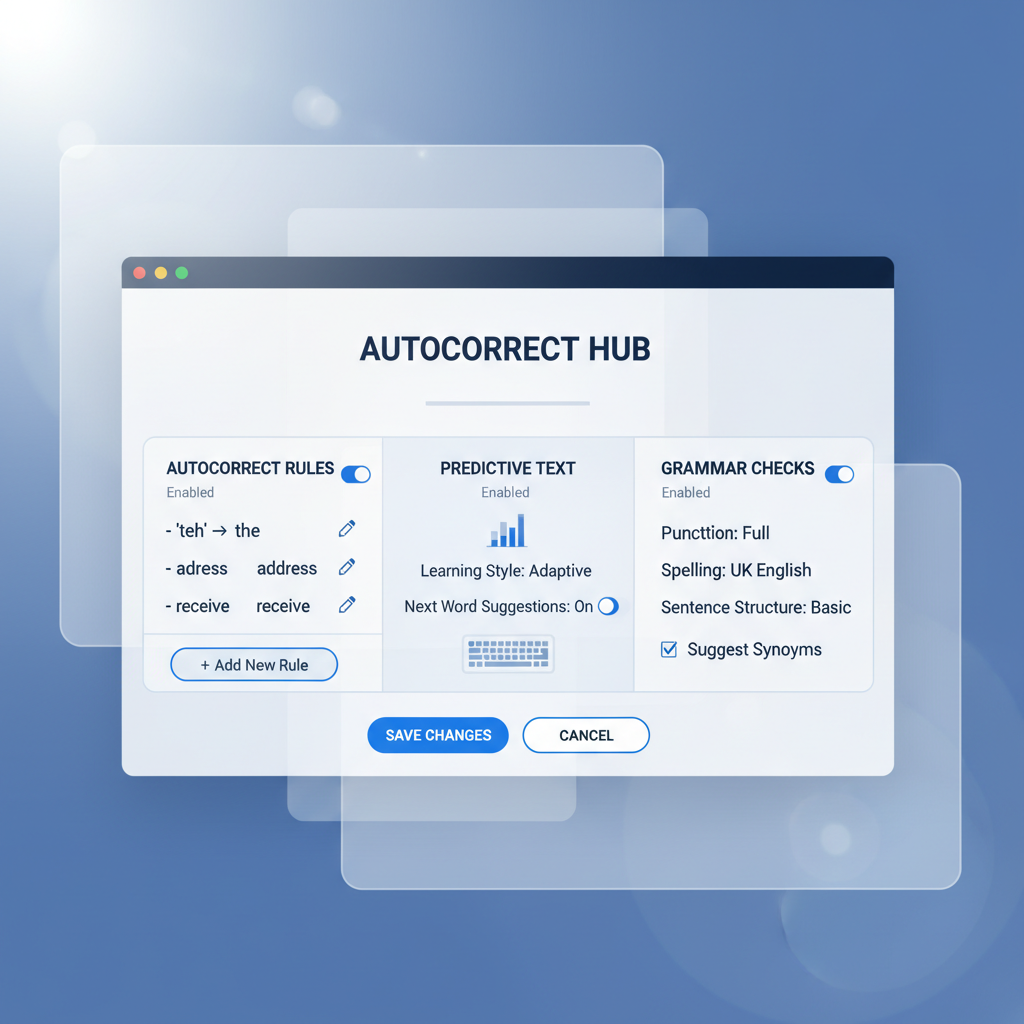
Most advanced writing assistants will offer a dedicated settings panel where you can fine-tune various aspects of their functionality. Here's what you should look for and how to customize it:
- Enabling/Disabling Features: You'll typically find toggles to activate or deactivate specific features like autocorrect, predictive text, grammar correction, and voice typing. If you prefer to manually correct certain types of errors, you can disable automatic corrections and rely on suggestions instead.
- Custom Dictionaries: This is a crucial customization point. You should be able to add frequently used words, proper nouns, or industry-specific jargon that might not be in the standard dictionary. This prevents the assistant from flagging them as errors or incorrectly correcting them. Many tools also allow you to create "exclusion lists" for words you never want corrected.
- Auto-Replacement Rules (Text Expanders): This feature allows you to define shortcuts that expand into longer phrases. For example, you could set "brb" to expand to "be right back," or "myemail" to insert your full email address. This is incredibly powerful for saving time on repetitive typing.
- Grammar and Style Preferences: Some advanced tools allow you to adjust the strictness of grammar checks or choose specific style guides. For professional writers, this can be invaluable for maintaining consistency in tone and formal requirements.
- Hotkey Customization: Personalize keyboard shortcuts for accessing features like predictive text suggestions, AI writing prompts, or toggling voice typing. This ensures the tool integrates smoothly into your existing workflow without interrupting your typing rhythm.
- Language Settings: If you work in multiple languages, ensure the assistant supports them and allows for easy switching between language profiles.
By taking the time to configure these settings, you can transform a powerful tool into a personalized writing partner that understands your unique needs and helps you write more efficiently and accurately across all your Windows applications.
Conclusion
In the evolving digital landscape of 2026, relying solely on the basic, fragmented autocorrect features built into Windows is no longer sufficient for optimal productivity and clear communication. The demand for system-wide, intelligent writing assistance has driven the development of sophisticated tools that go far beyond simple spell-checking. These modern solutions offer a comprehensive suite of features, including predictive text, real-time grammar correction, AI writing capabilities, and voice typing, all designed to streamline your workflow across every application on your Windows PC.
By embracing a smart writing assistant like AutoCorrect PC, you can significantly enhance your typing speed, reduce errors, and improve the overall quality of your written communication. Such tools not only fix mistakes but also proactively help you articulate your thoughts more efficiently, ensuring consistency and professionalism in all your digital interactions. Prioritizing privacy through local data processing and customizing the software to your specific needs further solidifies its role as an indispensable part of your daily computing. Investing in a robust system-wide autocorrect solution is an investment in your productivity, accuracy, and peace of mind in the modern digital era.
Ready to Transform Your Typing Experience?
Don't let inconsistent autocorrect and manual corrections slow you down. Discover how AutoCorrect PC can revolutionize your writing on Windows with system-wide autocorrect, predictive text, grammar correction, AI writing, and voice typing. Visit autocorrectforpc.com today to learn more and start typing faster and cleaner across all your applications.
Frequently Asked Questions
Q1: What is system-wide autocorrect and why do I need it?
System-wide autocorrect refers to a writing assistant that provides automatic spelling and grammar corrections, word predictions, and other writing aids across all applications on your Windows computer, not just within specific programs like Microsoft Word or a web browser. You need it because native Windows autocorrect is often inconsistent and limited, leaving you without assistance in many apps. A system-wide solution ensures a seamless and productive writing experience everywhere you type.
Q2: How does AutoCorrect PC differ from the built-in Windows spell checker?
AutoCorrect PC offers a significantly more comprehensive and consistent writing experience. While the built-in Windows spell checker provides basic typo correction in some contexts, AutoCorrect PC works across all applications, offers advanced features like predictive text, real-time grammar correction, AI writing, and voice typing. It's designed for system-wide integration and deep customization, whereas native Windows tools are often fragmented and less powerful.
Q3: Is my typing data private when using a smart writing assistant like AutoCorrect PC?
Privacy is a critical concern, and reputable smart writing assistants prioritize it. AutoCorrect PC, for example, performs core typing features like autocorrect, word completion, next-word prediction, speech transcription, grammar correction, and dictionary lookups locally on your computer. This means your everyday typing data stays on your device. Features like AI Writer only communicate with external servers when you explicitly use them, ensuring your privacy is maintained. Always check the privacy policy of any software you use.
Q4: Can AutoCorrect PC help with grammar mistakes, not just spelling?
Yes, absolutely. AutoCorrect PC includes robust grammar correction capabilities. It catches grammar mistakes at the sentence level and applies clean fixes in context, helping you improve sentence structure, punctuation, subject-verb agreement, and more. This goes far beyond simple spell-checking, providing comprehensive linguistic assistance.
Q5: Can I customize the autocorrect rules or add my own words?
Yes, advanced writing assistants like AutoCorrect PC offer extensive customization options. You can typically add words to a custom dictionary to prevent them from being flagged as errors or incorrectly corrected. Many tools also allow you to create custom auto-replacement rules or text expanders, where a short abbreviation automatically expands into a longer phrase or a frequently used word, saving you time and keystrokes.
Q6: Does AutoCorrect PC support voice typing?
Yes, AutoCorrect PC features voice typing (speech to text). This allows you to speak instead of type, and your voice is transcribed and inserted directly into whatever application you're working in. This feature is excellent for increasing speed, improving accessibility, or when you prefer to dictate your thoughts.
Q7: Is AutoCorrect PC suitable for professional writers or students?
Absolutely. AutoCorrect PC is designed for anyone who types frequently on Windows, including professional writers, content creators, students, business professionals, and remote workers. Its comprehensive features, including grammar correction, AI writing, and predictive text, are invaluable for improving writing quality, speed, and efficiency in academic, professional, and creative contexts.
Related Posts
Best Text-to-Speech Software for Windows in 2026
Discover the top text-to-speech (TTS) software for Windows in 2026, offering natural voices, advanced features, and seamless integration to boost accessibility, productivity, and learning.
Read post →Top Productivity Software for Windows: A 2026 Buyer's Guide
Discover the best productivity software for Windows in 2026, focusing on AI writing assistants, system-wide autocorrect, and privacy. This guide helps you choose tools that enhance writing, streamline workflow, and save time.
Read post →Best Free Productivity Tools for Windows in 2026
Discover the top free productivity tools for Windows in 2026, featuring advanced AI, intelligent automation, and intuitive interfaces to streamline your workflow and boost efficiency. Learn about writing assistants, predictive text, grammar correction, and voice typing.
Read post →Want system-wide predictions, autocorrect, and voice typing on Windows?