
Best Free Productivity Tools for Windows in 2026
Discover the top free productivity tools for Windows in 2026, featuring advanced AI, intelligent automation, and intuitive interfaces to streamline your workflow and boost efficiency. Learn about writing assistants, predictive text, grammar correction, and voice typing.
As we navigate the complexities of the digital age, efficiency and accuracy in our daily tasks have become paramount. For Windows users, the quest for tools that streamline workflows, enhance communication, and boost overall productivity is ongoing. Fortunately, the landscape of free productivity tools for Windows is rich and constantly evolving, offering a wide array of solutions to help you achieve more with less effort. In 2026, these tools are more sophisticated than ever, integrating advanced AI, intelligent automation, and intuitive interfaces to transform how we work, study, and create.
Key Takeaways
Writing Assistants are Essential: Tools like AutoCorrect PC offer system-wide autocorrect, predictive text, grammar correction, and AI writing capabilities, significantly improving writing speed and accuracy across all Windows applications. AI Integration is Key: Many top productivity tools now incorporate AI for tasks ranging from summarizing documents to generating creative content, making complex tasks simpler and faster. Organization and Task Management Remain Crucial: Free applications for task lists, note-taking, and calendar management are fundamental for keeping track of responsibilities and deadlines. Collaboration Tools Enhance Teamwork: Effective communication and shared workspaces are vital for remote and hybrid teams, with many free options facilitating seamless collaboration. Accessibility Features are Growing: Voice typing and other assistive technologies are becoming more robust, offering inclusive solutions for diverse user needs. Privacy and Local Processing: Prioritize tools that offer local processing for sensitive data, ensuring your information remains secure on your device.
The Evolution of Writing Assistants: Beyond Basic Autocorrect
The days of simple spell-checkers are long gone. Modern writing assistants have evolved into comprehensive platforms that not only catch errors but also actively help you craft better, more coherent, and more impactful text. For Windows users, this means a significant upgrade in how they interact with their keyboards and screens.
These advanced tools go beyond basic grammar and spelling. They offer contextual suggestions, style improvements, and even help with phrasing. Imagine drafting an important email or a critical report, and having an intelligent assistant working silently in the background, ensuring your message is clear, concise, and professional. This is particularly beneficial for professional writers, students, and anyone who relies heavily on written communication. The goal is to minimize distractions caused by typos and grammatical errors, allowing you to focus on the content and flow of your ideas.
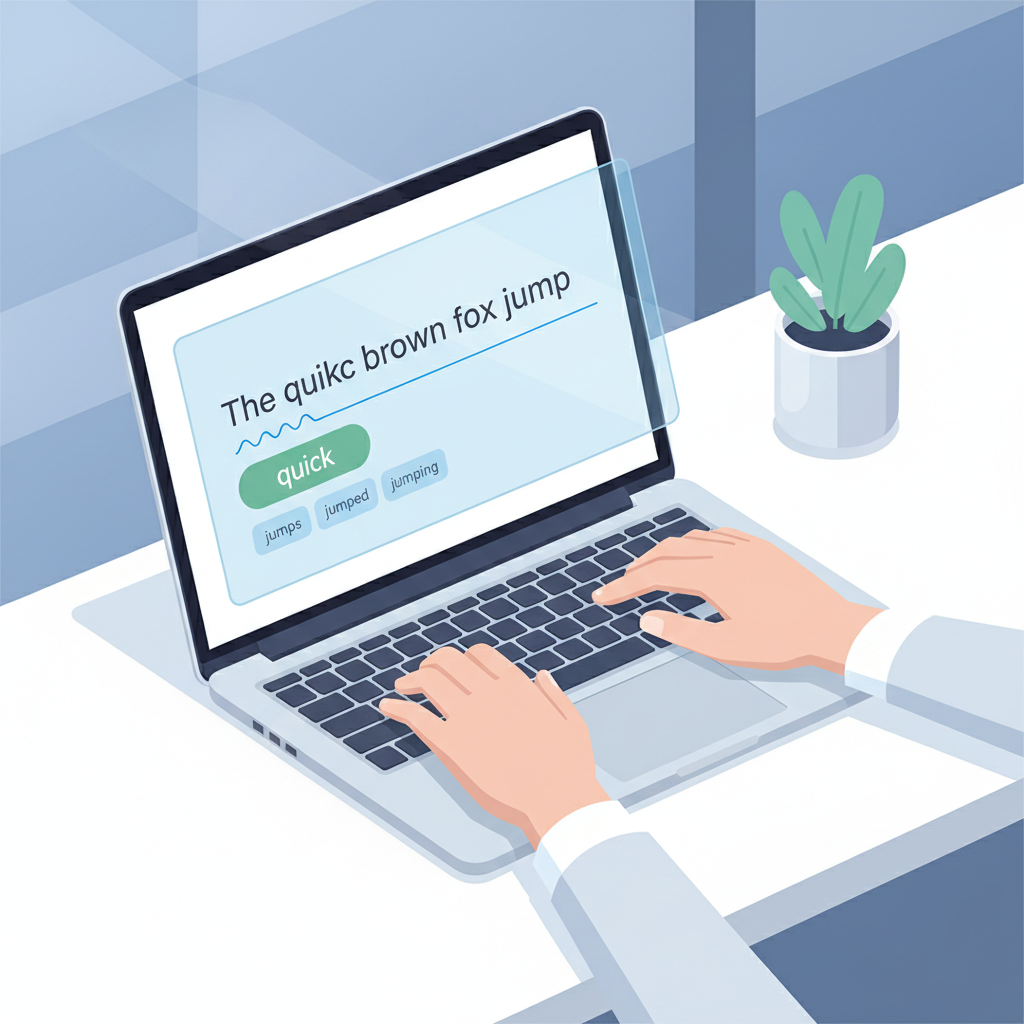
One of the standout innovations in this category is the system-wide integration offered by solutions like AutoCorrect PC. Unlike browser-specific extensions or standalone word processors, a system-wide writing assistant works across all your applications. Whether you're composing an email in Outlook, writing a report in Word, chatting in Teams, or even filling out a web form, the same intelligent assistance is consistently available. This seamless experience is a game-changer for productivity, eliminating the need to switch between tools or copy-paste text for corrections. The consistency ensures that your writing quality remains high, no matter where you are typing on your Windows machine.
Harnessing the Power of Predictive Text and Word Completion
Typing speed and accuracy are critical for productivity, especially for those who spend hours every day writing. Predictive text and word completion features have become indispensable, transforming the way we interact with our keyboards. These tools anticipate your next word or complete the one you're currently typing, significantly reducing keystrokes and accelerating the writing process.
For instance, when you start typing a common phrase or a frequently used technical term, a smart writing assistant can offer the full word or phrase, letting you insert it with a simple keypress. This not only saves time but also minimizes the cognitive load associated with typing, allowing your thoughts to flow more freely onto the screen. It's like having a mind-reader for your keyboard, anticipating your needs before you even fully articulate them. This is especially useful for content creators, coders, or anyone dealing with repetitive terminology.
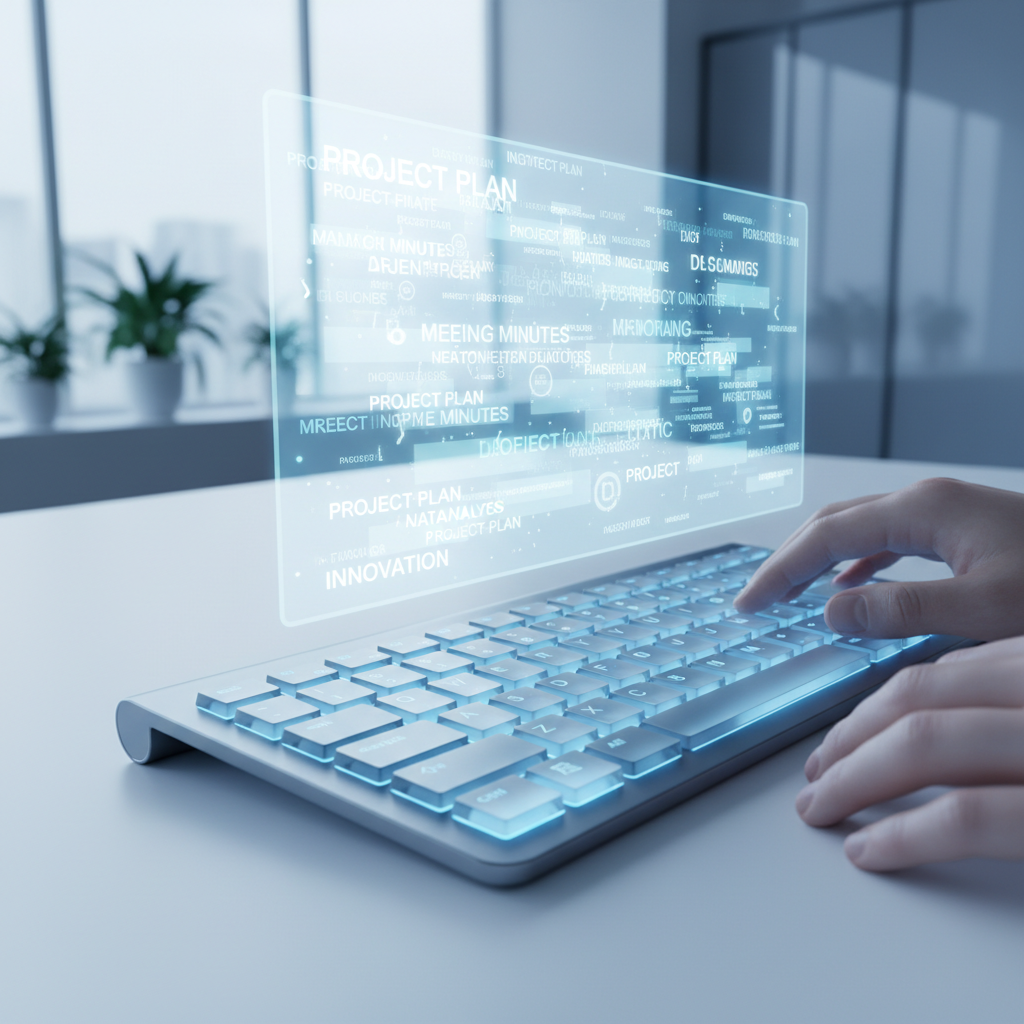
The real magic happens when these features are integrated system-wide, as with AutoCorrect PC. Imagine you're working on a lengthy document, and as you type, suggestions for the next word or phrase appear directly within your application, whether it's a specialized coding environment, a design program with text fields, or a standard office suite. This eliminates the friction of context switching and keeps you focused on your primary task. The ability to customize these predictions, adding your own frequently used jargon or personal phrases, further enhances their utility, making the tool truly tailored to your individual writing style and needs.
Grammar Correction and AI Writing: Your Intelligent Co-Pilot
Beyond basic spelling and predictive text, the evolution of grammar correction and AI writing capabilities has ushered in a new era of intelligent assistance. These tools act as your personal co-pilot, not just pointing out errors but actively helping you refine your prose and even generate new content.
Advanced grammar checkers go beyond identifying subject-verb agreement issues or misplaced commas. They analyze sentence structure, identify awkward phrasing, and suggest improvements for clarity and conciseness. This is particularly valuable for non-native English speakers or anyone striving to elevate their writing quality. Instead of merely flagging a mistake, they often provide context and alternative suggestions, helping you learn and improve over time. The goal is to ensure your message is not only grammatically sound but also impactful and easy to understand.
The integration of AI writing takes this a step further. Tools like AutoCorrect PC's AI Writer can generate text from a simple prompt, rewrite existing sentences for better flow, or expand on an idea. For example, if you're stuck on how to phrase a particular paragraph, you can feed your existing text and a prompt to the AI, and it will offer several options. This capability is a boon for marketers, bloggers, and anyone facing writer's block. It can help kickstart creativity, overcome linguistic hurdles, and significantly speed up content creation. The ability to have these AI-generated results directly inserted into your current application, without copy-pasting, maintains your workflow and boosts efficiency.
Voice Typing: Speaking Your Way to Productivity
For many, typing can be a bottleneck in the creative or productive process. Voice typing, or speech-to-text technology, has matured significantly, offering a powerful alternative for inputting text quickly and efficiently. This feature is a game-changer for individuals with typing disabilities, those who prefer speaking over typing, or anyone looking to give their hands a break.
Modern voice typing solutions boast impressive accuracy, capable of transcribing spoken words into written text with remarkable precision. They can often understand nuances in speech, differentiate between homophones, and even adapt to different accents over time. This means you can dictate emails, reports, notes, or even creative stories directly into your computer, freeing up your hands and often speeding up the initial drafting process.
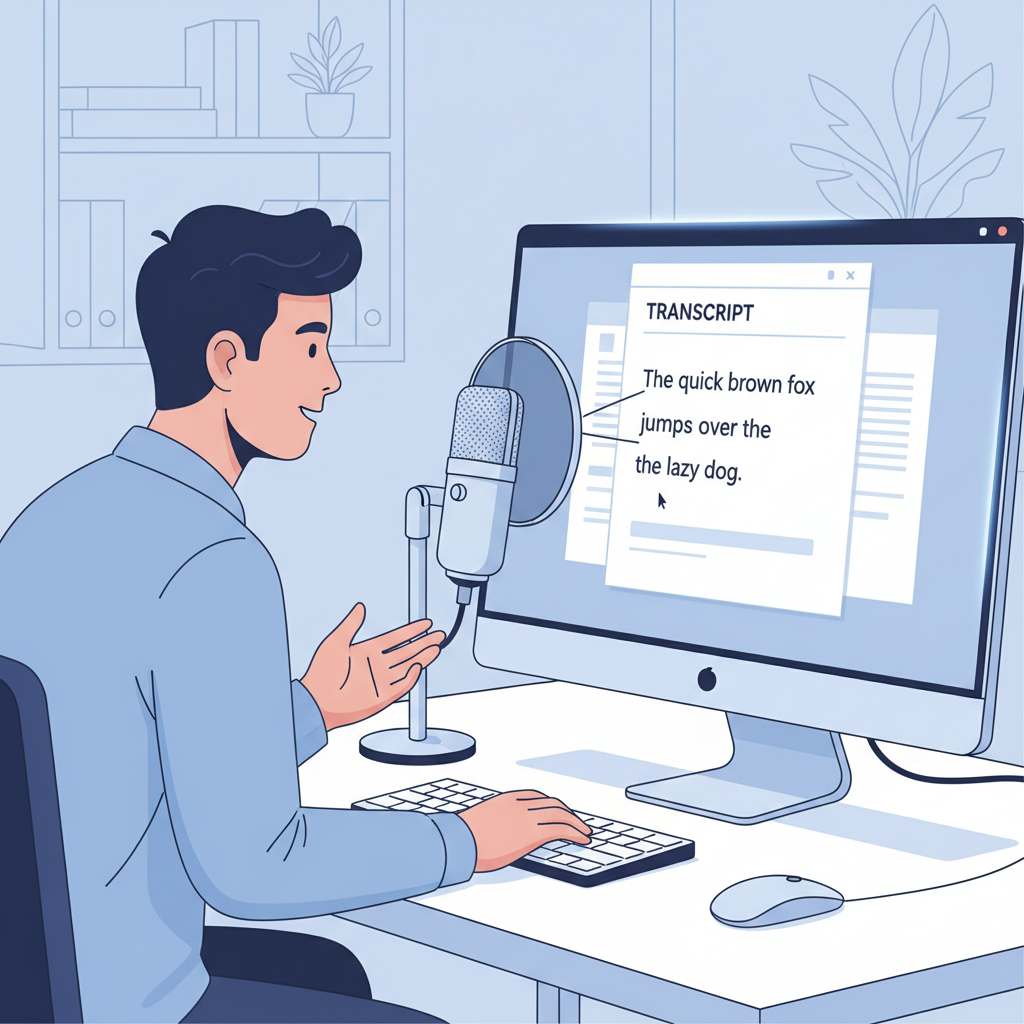
The true power of voice typing is unlocked when it's integrated system-wide, as offered by AutoCorrect PC. Instead of being confined to a specific application or web browser, you can speak your thoughts into any text field on your Windows desktop. This includes your CRM software, project management tools, messaging apps, or any other program where text input is required. This universal accessibility ensures that you can leverage voice typing whenever and wherever you need it, making your workflow incredibly fluid and adaptive. For those who find typing cumbersome or painful, this technology provides an invaluable pathway to maintaining high levels of productivity.
Streamlining Your Workflow with Auto Replacement and Hotkeys
Efficiency in a digital environment often comes down to minimizing repetitive actions and maximizing quick access to frequently used functions. Auto replacement and customizable hotkeys are two powerful features that, when used effectively, can significantly streamline your workflow on Windows.
Auto replacement, sometimes called text expansion, allows you to define shortcuts for longer phrases, sentences, or even entire paragraphs. For example, you could type "eml" and have it automatically expand to your full email signature, or "addr" to insert your complete mailing address. This is incredibly useful for customer service professionals, sales teams, or anyone who frequently uses canned responses or standard disclaimers. It not only saves keystrokes but also ensures consistency in communication, reducing the chance of errors in repetitive text.
Tip: Start by identifying the 5-10 phrases you type most often in a day. Create auto replacement shortcuts for these, and you'll immediately notice a boost in your typing speed and a reduction in fatigue.

Hotkeys, or keyboard shortcuts, provide a fast way to trigger specific actions without reaching for the mouse. While Windows itself offers many built-in hotkeys, advanced productivity tools allow you to customize or create new ones for their specific features. Imagine a hotkey that instantly brings up your word prediction suggestions, or one that triggers the AI writer to rephrase your last sentence. This level of control allows you to keep your hands on the keyboard, maintaining your focus and flow. AutoCorrect PC, for instance, integrates hotkeys for easy access to features like word completion and next-word prediction, ensuring these powerful tools are always just a tap away.
Privacy and Local Processing: Keeping Your Data Secure
In an age where data privacy is a growing concern, understanding how your productivity tools handle your information is paramount. Many online writing and AI tools process your data on remote servers, raising questions about security and confidentiality. For Windows users, prioritizing tools that offer local processing for sensitive typing features is a crucial aspect of responsible digital citizenship.
Local processing means that the core functions of a tool, such as autocorrection, word prediction, next-word prediction, speech transcription, grammar correction, and dictionary lookups, are performed directly on your computer. Your typing data never leaves your device and is not transmitted to external servers. This provides a significant layer of security and privacy, ensuring that your personal communications, confidential documents, and sensitive information remain private. For professionals handling proprietary information, students working on research, or anyone valuing their digital privacy, this feature is non-negotiable.

AutoCorrect PC stands out in this regard by emphasizing a "Privacy First" approach. It performs most of its intelligent writing assistance locally on your device. The only time it communicates with external servers is when you explicitly use its AI Writer feature, and even then, the interaction is designed with privacy in mind. This distinction is vital because it means your everyday typing, which often includes a vast amount of personal and professional data, is never exposed to third-party servers. When evaluating free productivity tools for Windows, always look for clear statements on data handling and prioritize those that minimize external data transmission for core features. This commitment to local processing empowers users to enhance their productivity without compromising their privacy.
Integrating with Your Existing Windows Ecosystem
The true value of any productivity tool lies not just in its individual features, but in its ability to seamlessly integrate with your existing workflow and the broader Windows ecosystem. A tool that works in isolation, requiring you to constantly switch applications or copy-paste content, ultimately hinders productivity rather than helping it.
Effective integration means a tool can operate across various applications you already use daily. This includes popular Microsoft Office suite applications like Word, Outlook, and Excel, as well as web browsers, messaging apps like Slack or Microsoft Teams, and even specialized software for coding, design, or project management. The goal is a consistent experience regardless of where you are typing.
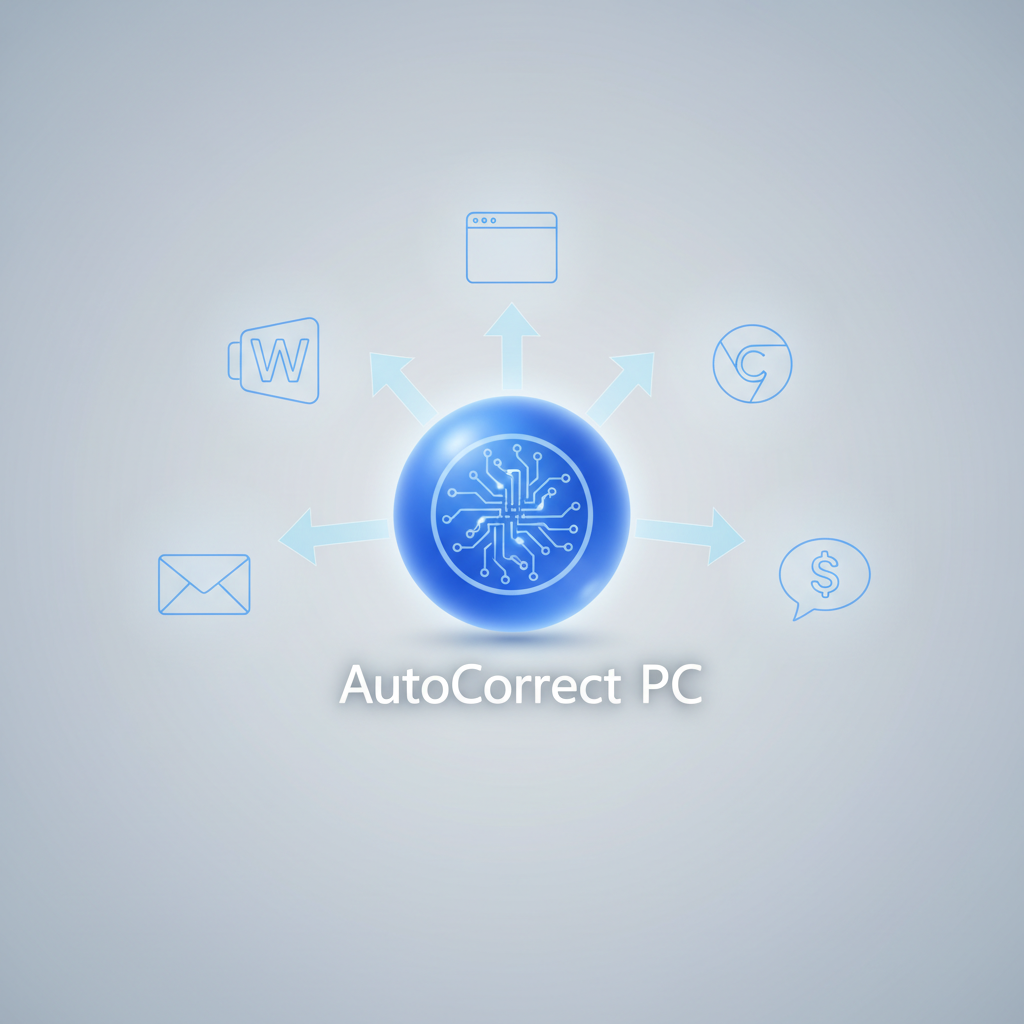
For example, a writing assistant that offers system-wide autocorrect and predictive text, such as AutoCorrect PC, ensures that your writing quality is consistent whether you're drafting an email, compiling a report, or simply typing a quick note. This universal compatibility is a key differentiator from browser-specific extensions or standalone apps. It eliminates the need to learn different shortcuts or configurations for various platforms, simplifying your digital life. Furthermore, features like voice typing that work in any text field on Windows mean you're never limited by the capabilities of a single application. When choosing your free productivity tools for Windows, always consider how well they will blend into your current software landscape to truly enhance, rather than complicate, your daily tasks.
Beyond Writing: Other Essential Free Windows Productivity Tools
While writing assistants are a cornerstone of digital productivity, a holistic approach requires a suite of tools that address various aspects of your daily tasks. In 2026, several other free Windows productivity tools stand out for their ability to organize, manage, and facilitate collaboration.
Task Management and To-Do Lists: Keeping track of responsibilities is fundamental. Tools like Microsoft To Do (often built into Windows) or free versions of popular apps like Todoist offer intuitive interfaces for creating lists, setting reminders, and prioritizing tasks. They often sync across devices, ensuring your task list is always up-to-date. These applications are crucial for both personal organization and team project management, helping you stay on top of deadlines and commitments.
Note-Taking Applications: Whether for brainstorming, meeting minutes, or quick ideas, a reliable note-taking app is essential. OneNote, integrated deeply with Windows, provides a versatile digital notebook where you can type, draw, record audio, and even embed files. Other free options like Simplenote offer minimalist, cloud-synced solutions for quick text notes. These tools help capture information efficiently and organize it for easy retrieval.
Calendar and Scheduling Tools: Managing your time effectively is critical. The built-in Windows Calendar app can sync with various accounts (Outlook, Google) to provide a unified view of your schedule. It allows for easy event creation, meeting joins, and time blocking, helping you visualize and plan your day. For more advanced scheduling, many project management tools offer free tiers with integrated calendars.
Communication and Collaboration Platforms: For teams and remote workers, free versions of tools like Microsoft Teams or Slack offer robust features for instant messaging, video conferencing, and file sharing. These platforms facilitate real-time collaboration, keeping everyone connected and informed. While they might have limitations in their free tiers, they provide excellent starting points for small teams or individual projects.
These complementary tools, when combined with a powerful writing assistant like AutoCorrect PC, create a comprehensive productivity ecosystem on your Windows machine, enabling you to tackle a wide range of tasks with greater efficiency and ease.
Conclusion
The landscape of free productivity tools for Windows in 2026 offers an unprecedented level of sophistication and integration. From intelligent writing assistants that provide system-wide autocorrect, predictive text, and grammar correction, to advanced AI writing capabilities and seamless voice typing, these tools are designed to empower users to work faster, cleaner, and more effectively. The emphasis on privacy through local processing, as seen in AutoCorrect PC, ensures that enhanced productivity doesn't come at the cost of data security.
Beyond writing, a robust ecosystem of free task managers, note-taking apps, and collaboration platforms further solidifies Windows as a powerhouse for productivity. By strategically combining these tools, individuals and teams can significantly streamline their workflows, overcome common digital hurdles, and achieve their goals with greater ease and confidence. Embracing these innovations is not just about staying current, but about redefining what's possible in your daily digital endeavors.
Ready to Supercharge Your Windows Productivity?
Don't let typing errors or slow writing hold you back. Experience the future of writing assistance on Windows. Download AutoCorrect PC today and transform your typing experience!
Related Posts
Best Text-to-Speech Software for Windows in 2026
Discover the top text-to-speech (TTS) software for Windows in 2026, offering natural voices, advanced features, and seamless integration to boost accessibility, productivity, and learning.
Read post →Top Productivity Software for Windows: A 2026 Buyer's Guide
Discover the best productivity software for Windows in 2026, focusing on AI writing assistants, system-wide autocorrect, and privacy. This guide helps you choose tools that enhance writing, streamline workflow, and save time.
Read post →Essential Productivity Tools for Windows 11 in 2026
Discover the top productivity tools for Windows 11 users in 2026, focusing on AI writing assistants, voice typing, and system-wide integration. Learn how AutoCorrect PC enhances your workflow with advanced grammar correction, predictive text, and content generation, all while prioritizing your privacy.
Read post →Want system-wide predictions, autocorrect, and voice typing on Windows?