
Best Text-to-Speech Software for Windows in 2026
Discover the top text-to-speech (TTS) software for Windows in 2026, offering natural voices, advanced features, and seamless integration to boost accessibility, productivity, and learning.

Key Takeaways
Text-to-speech (TTS) software is evolving rapidly, with 2026 bringing more natural voices and advanced features for Windows users. These tools significantly enhance accessibility, productivity, and learning by converting written text into spoken audio. Key features to look for include natural-sounding voices, multi-language support, integration with various applications, and customization options. Dedicated TTS applications offer robust functionality, while built-in Windows features and browser extensions provide convenient, basic options. AutoCorrect PC integrates voice typing (speech-to-text) and AI writing, complementing TTS by streamlining the input and creation process for Windows users. Choosing the best TTS solution depends on individual needs, whether for casual listening, professional content creation, or accessibility support.
The digital landscape is constantly evolving, and with it, the tools we use to interact with information. In 2026, text-to-speech software for Windows has reached new levels of sophistication, offering incredibly natural voices, seamless integration, and a host of features designed to boost productivity, enhance accessibility, and transform how we consume written content. Whether you're a student trying to absorb dense textbooks, a professional proofreading a crucial report, or someone with visual impairments seeking an alternative way to access information, the right TTS tool can make a significant difference. This article explores the top text-to-speech solutions available for Windows in 2026, highlighting their capabilities and helping you choose the best fit for your needs.
The Evolution of Text-to-Speech Technology
The journey of text-to-speech technology has been remarkable. From the robotic, monotone voices of early systems to the highly expressive and human-like intonations we hear today, advancements in AI and machine learning have revolutionized the field. In 2026, TTS engines leverage deep learning algorithms to generate speech that not only sounds natural but also conveys emotion and context, making the listening experience far more engaging. This evolution has expanded the utility of TTS beyond simple accessibility, transforming it into a powerful productivity tool for a wide range of users.
Modern TTS solutions for Windows often come with a variety of voices, accents, and languages, allowing users to personalize their listening experience. They can often adjust reading speed, pitch, and volume, offering a level of control previously unimaginable. Furthermore, the integration of TTS into operating systems, web browsers, and productivity suites means that this technology is more accessible than ever before, seamlessly fitting into daily workflows. The focus has shifted from merely converting text to audio to creating an immersive and intelligent auditory experience.
Why Use Text-to-Speech Software on Windows?
The applications of text-to-speech software are diverse and impactful. For many, it's a critical accessibility tool, providing an auditory alternative to reading for individuals with visual impairments, dyslexia, or other reading difficulties. It ensures that everyone can access digital content, fostering inclusivity and equal opportunity. Beyond accessibility, TTS offers significant benefits for productivity and learning.
Consider students who can listen to their textbooks or research papers while commuting or exercising, effectively using their time more efficiently. Professionals can proofread documents by listening to them aloud, often catching errors that their eyes might miss. Content creators can generate voiceovers for videos or podcasts without needing to hire voice actors. For those learning a new language, TTS can provide accurate pronunciation and help improve listening comprehension. The ability to multitask, reduce eye strain, and improve comprehension are just a few of the compelling reasons to integrate TTS into your Windows workflow.
Tip: Listening to written content can improve retention and comprehension, especially for complex subjects. Try combining reading with simultaneous listening to engage multiple senses.
Key Features to Look for in 2026
When evaluating text-to-speech software for Windows in 2026, several key features stand out as essential for a superior user experience. Prioritizing these will help you select a tool that truly meets your needs.
Natural-Sounding Voices: This is paramount. The more human-like and less robotic the voice, the more pleasant and less fatiguing the listening experience will be. Look for options with a range of voices, including different genders and accents. Multi-Language Support: For global users or those working with diverse content, support for multiple languages and dialects is crucial. Application Integration: The best TTS tools work seamlessly across various applications, including web browsers, word processors, PDF readers, and email clients. System-wide integration means you can convert text to speech from almost any source. Customization Options: The ability to adjust reading speed, pitch, volume, and even pause duration between sentences allows for a personalized listening experience. Offline Functionality: For users who frequently work without an internet connection, offline TTS capabilities are invaluable. Export Options: Some software allows you to export the spoken audio as an MP3 or WAV file, which is useful for creating podcasts, audiobooks, or voiceovers. Highlighting and Tracking: As the text is read aloud, the software should highlight the words or sentences being spoken, aiding comprehension and allowing users to follow along visually. Ease of Use: An intuitive interface and straightforward controls are essential for a smooth user experience.
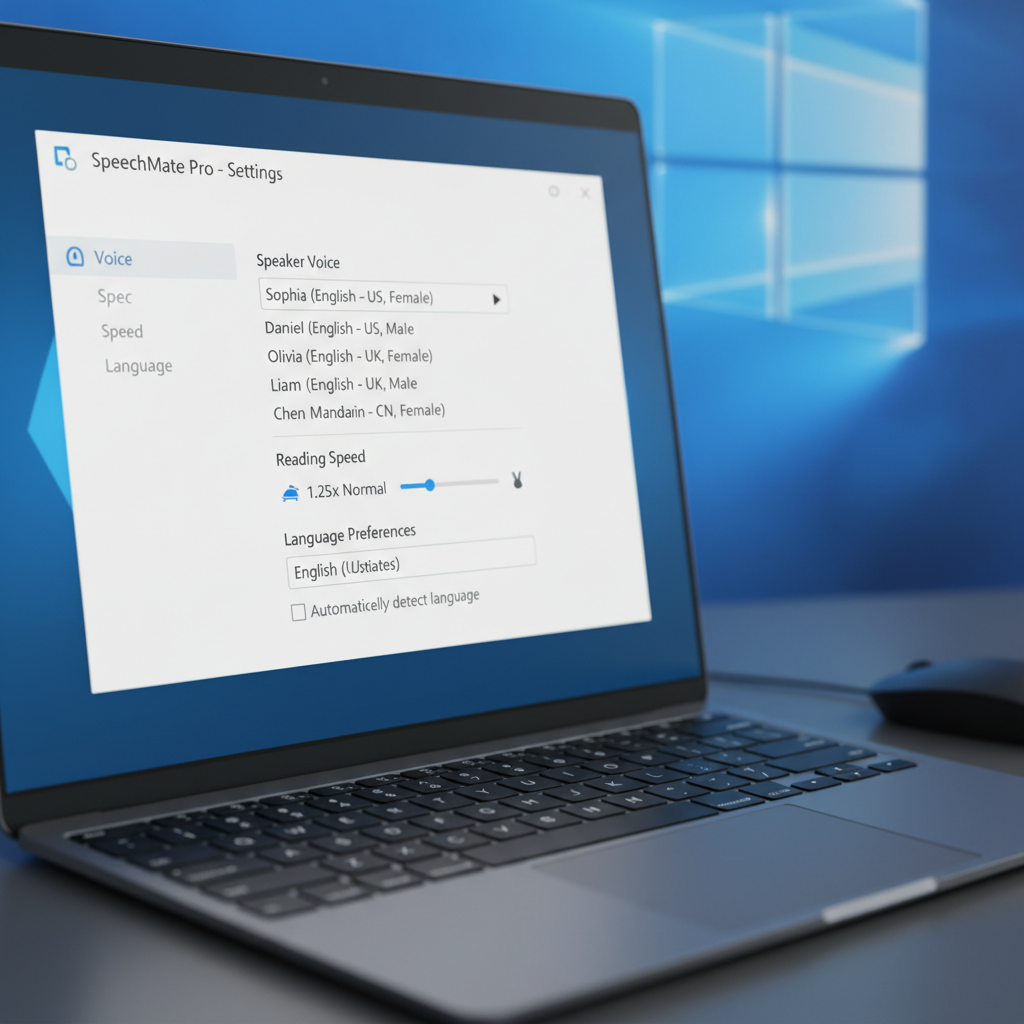
Top Dedicated Text-to-Speech Applications for Windows
While Windows offers some built-in TTS capabilities, dedicated applications often provide a more robust and feature-rich experience. Here are some of the leading contenders in 2026:
Balabolka
Balabolka remains a popular free option for Windows users (compatible with Windows 7 and later). It allows you to paste text directly or open various document formats, including Word documents, PDFs, and e-books. You can then play the audio or export it as a file. While its default voices might sound a bit robotic, Balabolka offers extensive customization options, allowing users to add more natural voices and fine-tune settings. It's known for its flexibility, including a portable version that doesn't require installation. PCMag highlights Balabolka's utility for those seeking a highly customizable, free solution, especially for older Windows versions.
NaturalReader
NaturalReader is a versatile text-to-speech software available for Windows, offering both free and premium versions. It boasts a wide selection of high-quality, natural-sounding voices across many languages. Users can listen to web pages, PDFs, emails, and various document types. Its interface is user-friendly, and premium features include OCR (Optical Character Recognition) for reading text from images or scanned documents, and the ability to convert text into MP3 files for offline listening. NaturalReader is a strong choice for those who need a balance of quality, features, and ease of use.
Speechify
Speechify has gained significant traction for its advanced AI voices and cross-platform compatibility, including a robust Windows application. It excels in delivering exceptionally natural and expressive voices, making long listening sessions more enjoyable. Speechify allows users to listen to almost anything, from web articles and emails to cloud documents and PDFs. It's particularly favored by students and professionals for its ability to boost reading speed and comprehension through auditory learning. While a subscription is required for its premium features, the quality of its voices and its comprehensive functionality often justify the investment for serious users.

Built-in Windows Features and Browser Extensions
You don't always need a dedicated application for basic text-to-speech functions. Windows itself and popular web browsers offer convenient, built-in options.
Windows Narrator
Windows Narrator is Microsoft's integrated screen reader, designed primarily for accessibility. It can read aloud text on the screen, describe events, and interact with various applications. To activate it, simply press the Windows logo key + Ctrl + Enter. While Narrator's primary function is to assist users with visual impairments, it can also be used for general text-to-speech purposes. You can access its settings (Windows logo key + Ctrl + N) to customize voice, speed, and other preferences. Narrator is a good starting point for anyone looking for a free, built-in TTS solution on their Windows device.
Microsoft Edge's Read Aloud Feature
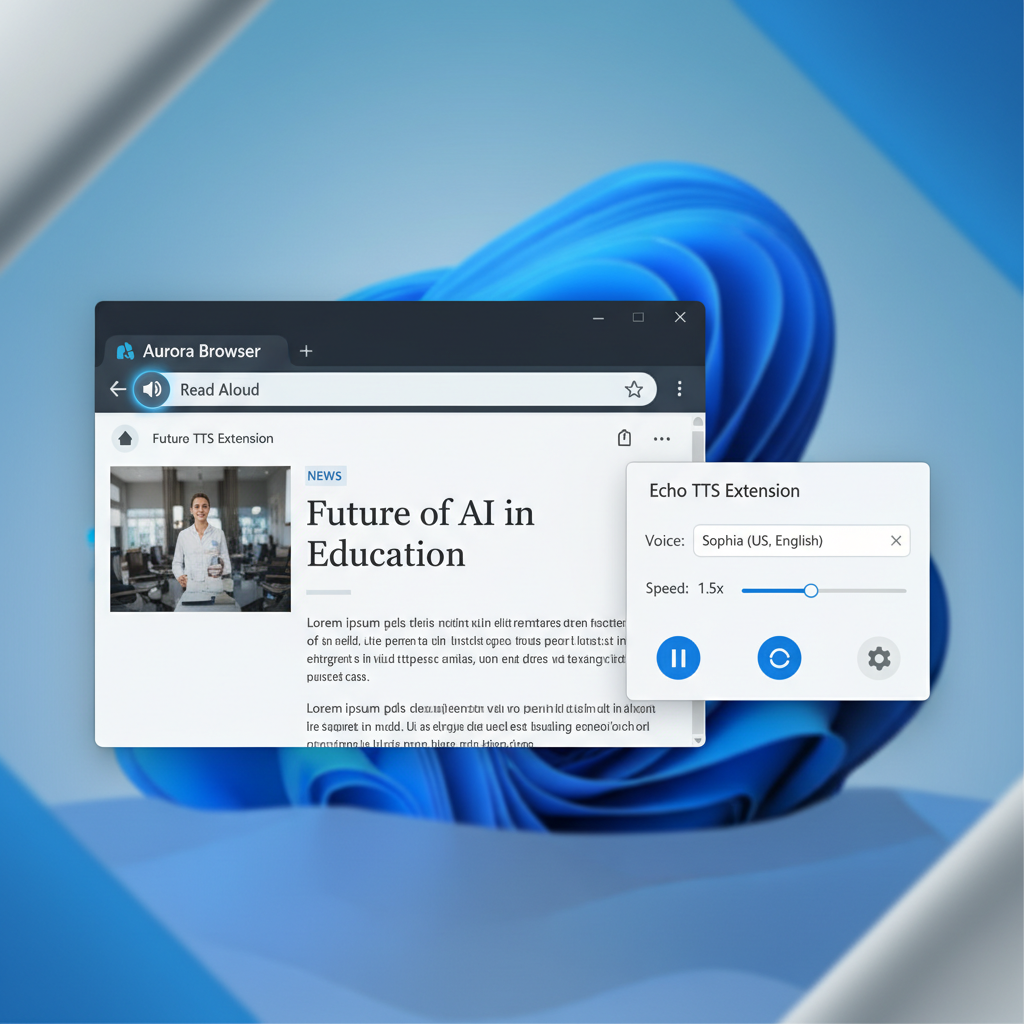
Microsoft Edge, the default browser for Windows, includes a powerful "Read Aloud" feature. This allows you to listen to web pages, PDFs opened in the browser, and even e-books. The voices are generally high-quality and natural-sounding, leveraging Microsoft's advanced TTS technology. To use it, simply right-click on a web page or select text, and choose "Read Aloud selection." This feature is incredibly convenient for consuming online content without needing to install additional software. TechRadar notes how useful this is for casual browsing and research.
Third-Party Browser Extensions
Many third-party browser extensions are available for Chrome, Firefox, and Edge that add TTS capabilities. These extensions often provide quick access to reading aloud web content, with some offering a selection of voices and languages. While generally less feature-rich than dedicated applications, they are excellent for on-the-fly listening of articles, emails, or social media posts directly within your browser. Examples include "Read Aloud" for Chrome or "Text-to-Speech (TTS) Reader" for Firefox.
How AutoCorrect PC Enhances Your Writing Workflow
While this article focuses on text-to-speech, it's important to recognize how complementary tools can further streamline your digital writing and content creation process. AutoCorrect PC, the Smart Writing Assistant for Windows, plays a crucial role in enhancing productivity and accuracy, effectively bridging the gap between thought and written word.
AutoCorrect PC offers a suite of features that work system-wide, meaning they function across all your Windows applications, not just a specific browser or word processor. This includes:
Autocorrect: Instantly corrects misspelled words as you type, ensuring clean and error-free text. Word Predictions & Completion: Suggests words as you type and even predicts the next likely words, significantly speeding up your writing. Grammar Correction: Catches grammar mistakes in context, providing clean fixes without needing to copy-paste into another tool. AI Writing: Generate, rewrite, or expand text directly within your application from a simple prompt or selected text. Voice Typing (Speech-to-Text):* This is where AutoCorrect PC directly complements TTS. Instead of typing, you can speak, and your words are transcribed directly into any app you're working in. This feature is incredibly useful for drafting documents, emails, or notes quickly, especially for those who prefer dictation or have typing limitations.
By integrating robust voice typing, AutoCorrect PC allows you to create content effortlessly, which can then be reviewed using your preferred text-to-speech software. This creates a powerful input-and-review loop, maximizing efficiency and accuracy. Imagine dictating a complex report using AutoCorrect PC's voice typing, then having a TTS application read it back to you for a final auditory proofread. This synergy makes for an incredibly productive workflow.
Choosing the Right Text-to-Speech Software for You
Selecting the best text-to-speech software depends heavily on your individual needs and how you plan to use it. Here's a breakdown to help you decide:
| Feature/Use Case | Best Choices | Casual Listening/Reading Aid | Windows Narrator, Microsoft Edge Read Aloud, Basic browser extensions
Related Posts
Top Productivity Software for Windows: A 2026 Buyer's Guide
Discover the best productivity software for Windows in 2026, focusing on AI writing assistants, system-wide autocorrect, and privacy. This guide helps you choose tools that enhance writing, streamline workflow, and save time.
Read post →Best Free Productivity Tools for Windows in 2026
Discover the top free productivity tools for Windows in 2026, featuring advanced AI, intelligent automation, and intuitive interfaces to streamline your workflow and boost efficiency. Learn about writing assistants, predictive text, grammar correction, and voice typing.
Read post →Essential Productivity Tools for Windows 11 in 2026
Discover the top productivity tools for Windows 11 users in 2026, focusing on AI writing assistants, voice typing, and system-wide integration. Learn how AutoCorrect PC enhances your workflow with advanced grammar correction, predictive text, and content generation, all while prioritizing your privacy.
Read post →Want system-wide predictions, autocorrect, and voice typing on Windows?