
Master Autocorrect for Windows: Tips & Tricks for 2026 Productivity
Discover how modern system-wide autocorrect and smart writing tools for Windows go beyond basic spell check to boost your productivity. Learn about predictive text, grammar correction, and AI writing features that are essential for 2026.

Key Takeaways
- System-wide Autocorrection is Key: Traditional Windows autocorrect is often app-specific. Modern solutions offer system-wide coverage for consistent writing assistance.
- Beyond Basic Autocorrect: The best writing assistants integrate predictive text, grammar correction, AI writing, and voice typing for comprehensive support.
- Privacy Matters: Prioritize tools that process your typing data locally on your device, especially for sensitive information.
- Efficiency Gains: Leveraging advanced features like word prediction and AI writing can significantly boost typing speed and writing quality.
- Accessibility Benefits: Tools like voice typing and predictive text offer substantial advantages for users with typing challenges.
- Future-Proof Your Writing: As AI evolves, integrating smart writing assistants into your workflow will become increasingly essential for productivity.
The digital landscape of 2026 demands efficiency and precision in every keystroke. For Windows users, mastering auto correct for windows and other smart writing tools is no longer a luxury, but a necessity. Whether you're drafting critical business documents, crafting engaging blog posts, or simply sending emails, the ability to type faster, cleaner, and with fewer errors can dramatically enhance your productivity and professionalism. This article will delve into the cutting-edge features available, offer practical tips, and highlight how tools like AutoCorrect PC are revolutionizing the way we interact with our computers.
The Evolution of Autocorrect on Windows
For years, autocorrect on Windows was largely confined to specific applications like Microsoft Word or Outlook. While helpful within those silos, it left a significant gap for system-wide writing. Imagine typing in a browser, a chat application, or a coding environment, only to find yourself constantly correcting typos manually. This fragmented experience was a major productivity drain.
The demand for a more integrated solution grew as digital communication became ubiquitous. Users needed a smart assistant that understood context, offered predictions, and corrected errors seamlessly across all their applications. This led to the development of sophisticated writing tools that go far beyond simple spell-checking. These modern solutions aim to create a unified typing experience, making your Windows PC a more intelligent and responsive writing partner.
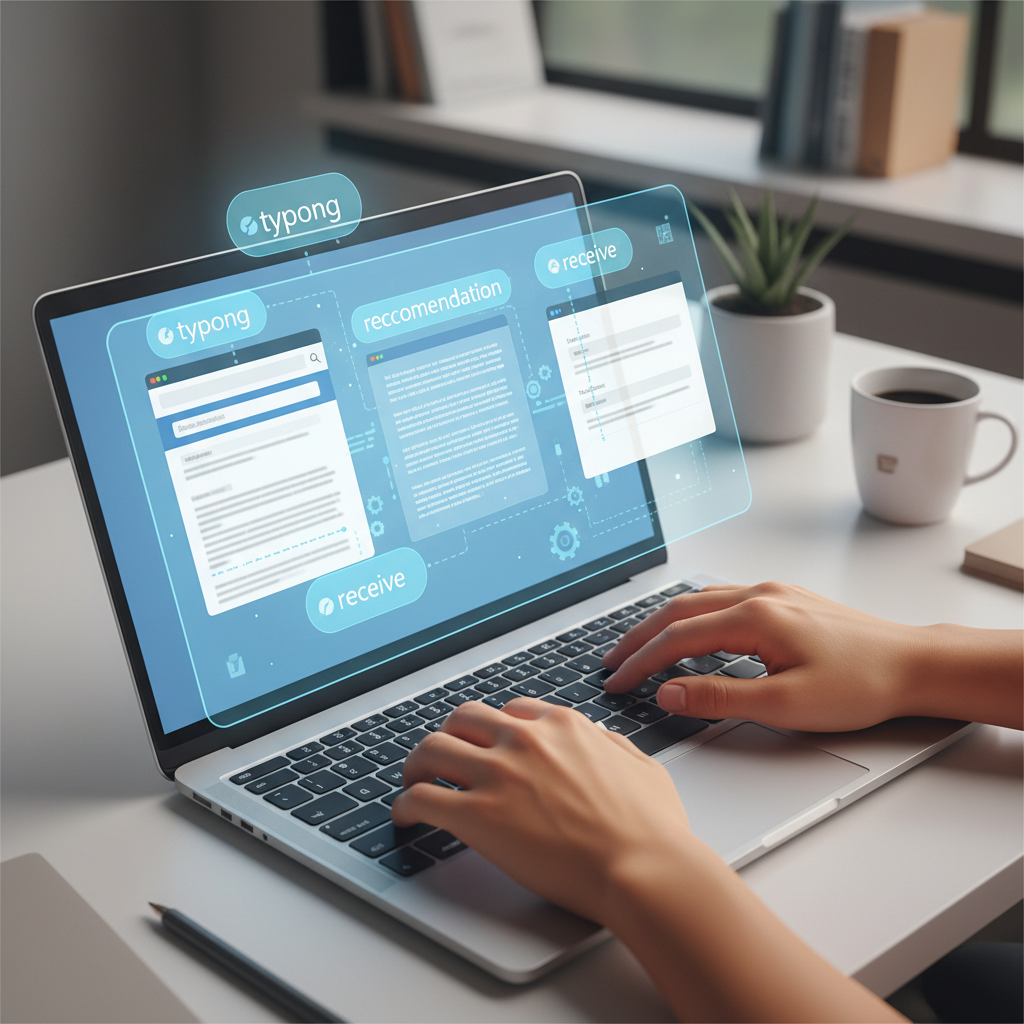
The shift towards system-wide integration means that the intelligence of your writing assistant isn't limited to a single program. It learns your typing patterns, vocabulary, and common errors, applying that knowledge everywhere you type. This consistency reduces cognitive load and allows you to focus on the content of your message rather than the mechanics of typing. The goal is to make typing feel more natural and less prone to frustrating mistakes, regardless of the application you are using.
Beyond Basic Spell Check: Predictive Text and Word Completion
While autocorrect handles misspellings, predictive text and word completion take your typing efficiency to the next level. These features anticipate what you're trying to type, offering suggestions that can save you countless keystrokes. Think of it as having a co-pilot for your keyboard, constantly offering the most likely next word or completing your current one.
How Predictive Text Works
Predictive text analyzes your current input and the context of your sentence to suggest subsequent words. For example, if you type "I am looking for," it might suggest "information," "a job," or "the file." This significantly speeds up typing, especially for common phrases or repetitive tasks. It learns from your usage, so the more you type, the smarter and more accurate its predictions become. This adaptive learning is crucial for a truly personalized writing experience.
Benefits of Word Completion
Word completion, on the other hand, focuses on finishing the word you are currently typing. As you type "docu," it might suggest "document" or "documentation." A quick press of a hotkey, like Tab or Enter, inserts the full word, preventing typos and reducing the effort required to type longer words. This is particularly useful for technical terms, proper nouns, or complex vocabulary that might otherwise slow you down.
Tip: Many advanced writing assistants, like AutoCorrect PC, allow you to create custom shortcuts for frequently used phrases. Typing "eml" could instantly expand to your full email signature, saving time and ensuring consistency.
These features are invaluable for anyone who spends a significant amount of time typing. For students, it means faster note-taking and essay writing. For professionals, it translates to quicker email responses and document creation. The cumulative effect of saving a few keystrokes here and there adds up to substantial time savings over the course of a day.
Grammar Correction: Polishing Your Prose
Even the most meticulous writers can overlook grammatical errors. Traditional spell checkers won't catch a misused "their" instead of "there," or a misplaced apostrophe. Modern grammar correction tools, however, are designed to identify these subtle yet critical mistakes, helping you present polished, professional writing.
Real-time Feedback
The most effective grammar checkers provide real-time feedback as you type. This means you don't have to wait until you've finished a document to discover errors. Instead, suggestions appear instantly, allowing you to correct mistakes in context and maintain your flow. This immediate feedback loop is crucial for learning and improving your writing over time, as you become more aware of your common pitfalls.
Advanced grammar tools go beyond simple subject-verb agreement. They can detect:
- Punctuation errors: Missing commas, incorrect semicolon usage.
- Syntax issues: Awkward phrasing, run-on sentences.
- Style suggestions: Passive voice, repetitive words, clarity improvements.
- Contextual errors: Distinguishing between homophones like "affect" and "effect."
The Advantage of Integrated Grammar Correction
Unlike standalone grammar checkers that require you to copy and paste text, an integrated solution works directly within your typing environment. This seamless experience ensures that your grammar is always on point, whether you're writing in a word processor, a web form, or a messaging app. This integration is a hallmark of comprehensive writing assistants, ensuring that all aspects of your writing are covered without interrupting your workflow.
Harnessing AI Writing for Enhanced Productivity
The advent of AI has brought revolutionary capabilities to writing, transforming how we generate, refine, and expand text. AI writing tools are no longer just for professional content creators; they are becoming indispensable for everyday Windows users seeking to boost their productivity and overcome writer's block.
Generating and Expanding Content
Imagine needing to draft a quick email, summarize a long document, or brainstorm ideas for a presentation. AI writing features can assist by generating initial drafts from a simple prompt or expanding on your existing text. For instance, you could provide a few bullet points, and the AI could turn them into a coherent paragraph or even a full section. This capability is a game-changer for speeding up the initial stages of writing.
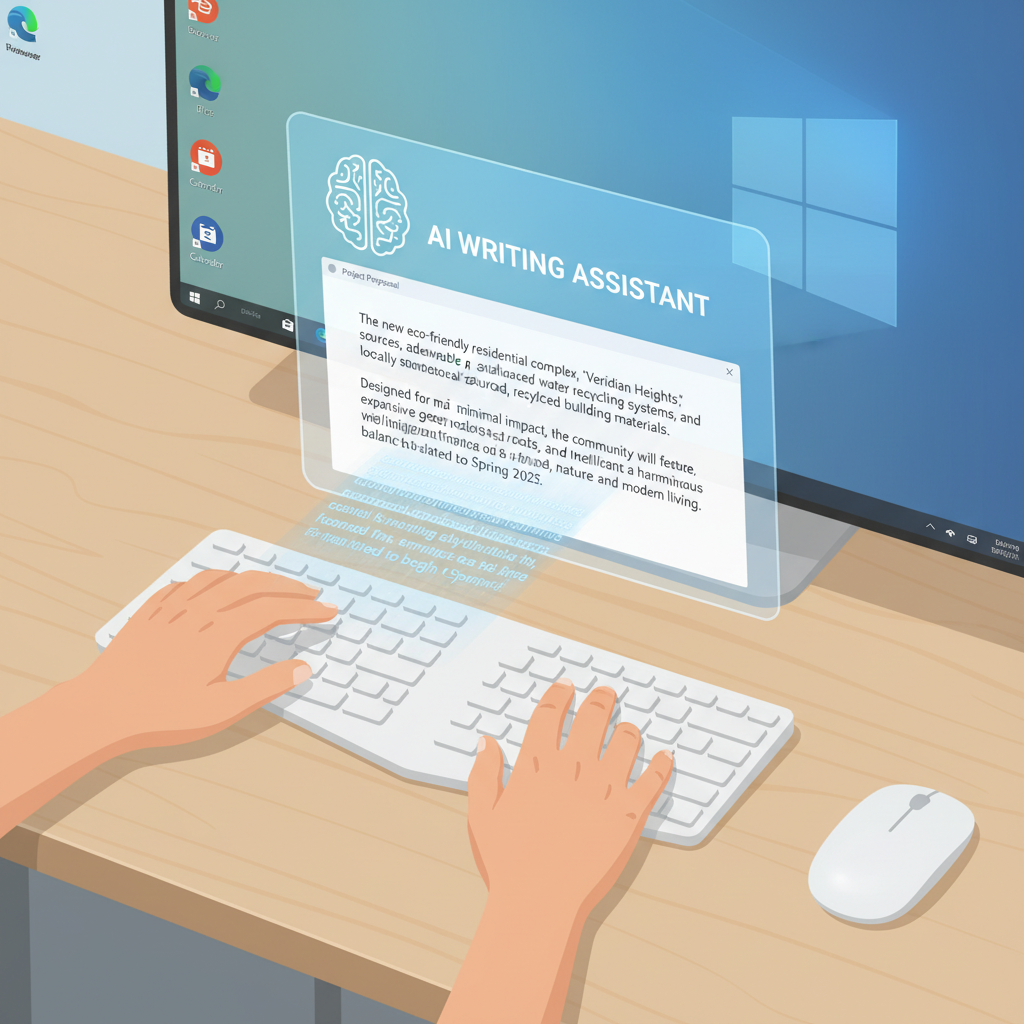
The utility of AI extends to various tasks:
- Drafting emails: Quickly compose professional emails based on key points.
- Summarizing documents: Condense lengthy articles or reports into concise summaries.
- Brainstorming ideas: Generate creative suggestions or different angles for a topic.
- Rewriting for tone: Adjust the tone of your text, making it more formal, casual, or persuasive.
AI and Your Workflow
Tools like AutoCorrect PC integrate AI writing directly into your Windows experience. You can select text you've already written and ask the AI to rewrite it, expand upon it, or even translate it, with the results appearing instantly in your application. This eliminates the need to switch between multiple tabs or applications, keeping you focused and efficient. The power of AI is brought directly to your fingertips, making complex writing tasks simpler and faster.
The Power of Voice Typing: Speak, Don't Type
For many, typing can be a barrier to productivity, whether due to speed limitations, physical discomfort, or accessibility needs. Voice typing, or speech-to-text, offers a powerful alternative, allowing you to dictate your thoughts directly into any Windows application. This technology has advanced significantly, offering remarkable accuracy and responsiveness.
How Voice Typing Works
Modern voice typing systems use sophisticated speech recognition algorithms to convert spoken words into written text in real-time. As you speak, the words appear on your screen, often with impressive speed and accuracy. This means you can compose emails, write reports, or even navigate your computer without touching your keyboard.
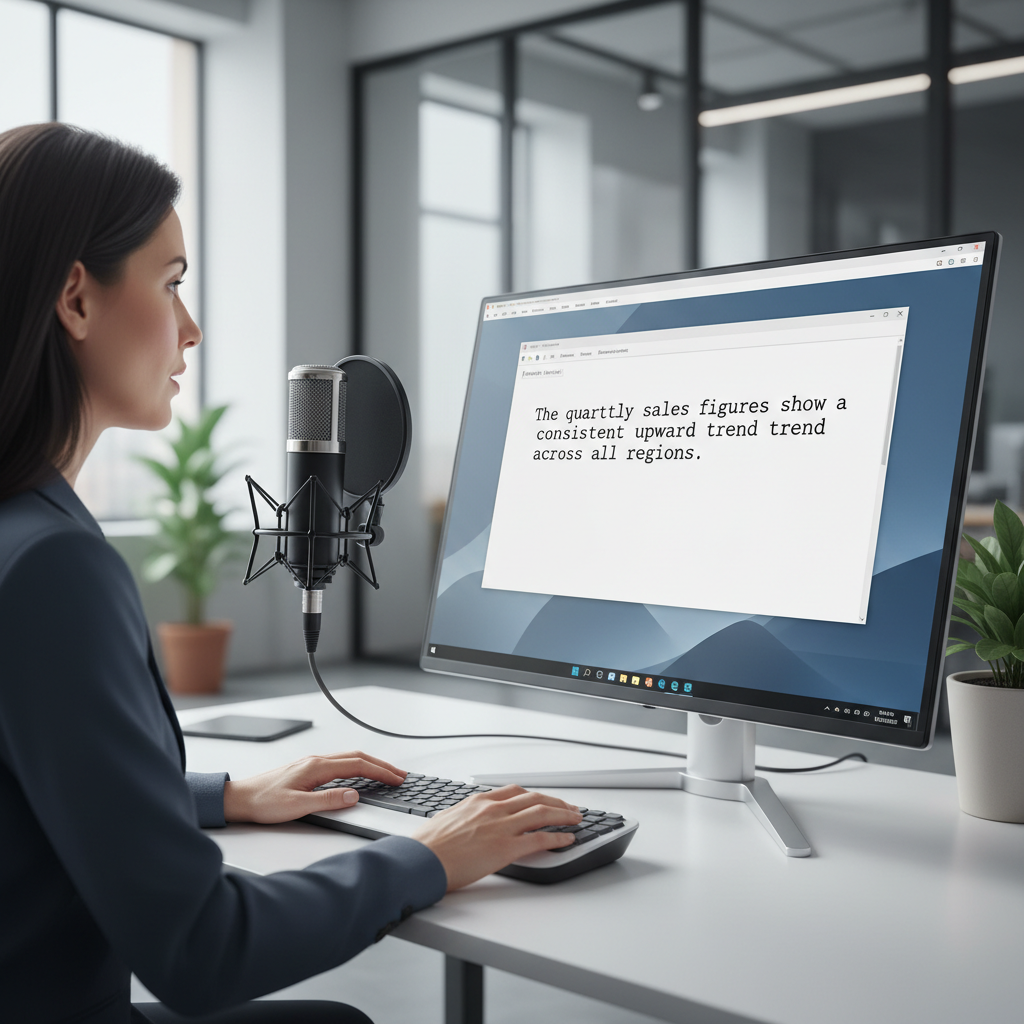
Benefits of incorporating voice typing into your workflow include:
- Increased speed: Most people can speak faster than they can type, especially for longer passages.
- Reduced strain: Alleviates wrist and finger strain, beneficial for those with repetitive strain injuries or carpal tunnel syndrome.
- Enhanced accessibility: Provides a vital input method for users with motor disabilities.
- Multitasking: Allows you to "type" while performing other tasks that require your hands.
Integrating Voice Typing with Your PC
For the best experience, a system-wide voice typing solution is essential. This allows you to dictate into any text field, whether it's a web browser search bar, a chat application, or a complex software interface. AutoCorrect PC offers this seamless integration, ensuring that your voice can be your input method across your entire Windows environment. This unified approach makes voice typing a truly versatile and empowering tool for all users.
Privacy and Local Processing: A Critical Consideration
In an era where data privacy is paramount, understanding how your writing assistant handles your information is crucial. Many online writing tools send your text to cloud servers for processing, raising concerns about data security and confidentiality. For sensitive documents or personal communications, this can be a significant drawback.
The Importance of Local Processing
A key differentiator for top-tier writing assistants is their ability to perform core functions locally on your device. This means that features like autocorrect, word completion, next-word prediction, speech transcription, grammar correction, and dictionary lookups are processed directly on your Windows PC, without sending your data to external servers. This "privacy-first" approach ensures that your everyday typing remains private and secure.
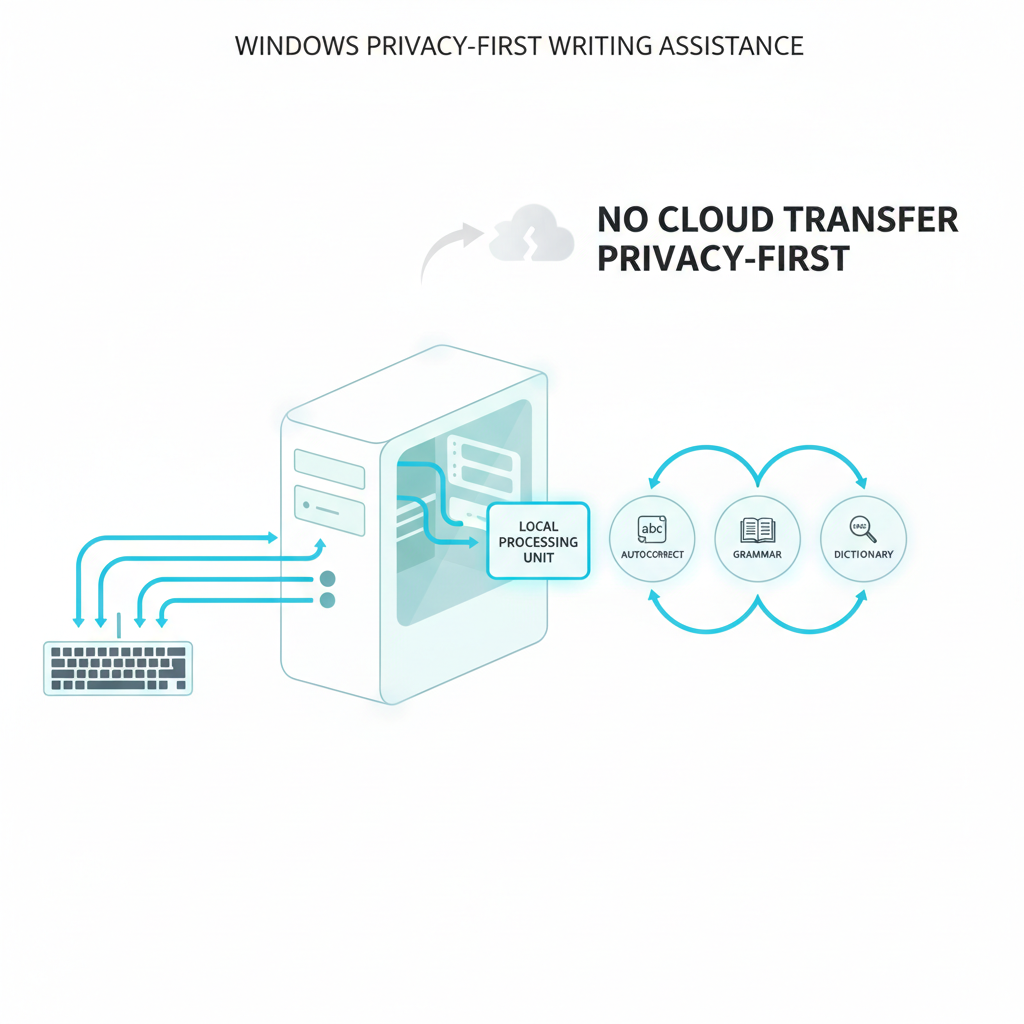
When evaluating writing tools, consider these privacy aspects:
- Offline functionality: Can the core features work without an internet connection? This often indicates local processing.
- Privacy policy clarity: Does the provider clearly state what data is collected, how it's used, and where it's stored?
- Opt-in for cloud features: For features that do require cloud processing (like advanced AI writing), is it explicitly opt-in, giving you control?
AutoCorrect PC's Approach to Privacy
AutoCorrect PC exemplifies this privacy-first philosophy. It processes your autocorrect, word completion, next-word prediction, speech transcription, grammar correction, and dictionary lookups entirely on your computer. The AI Writer feature is the only component that communicates with external servers, and only when you explicitly use it. This design gives you peace of mind, knowing that your sensitive information remains under your control. This commitment to privacy is a significant advantage in today's digital world.
Optimizing Your AutoCorrect PC Experience in 2026
To truly master your writing on Windows in 2026, it's not enough to simply install a smart writing assistant; you need to optimize its settings and integrate its features seamlessly into your daily workflow. AutoCorrect PC offers a suite of customizable options designed to adapt to your unique typing style and needs.
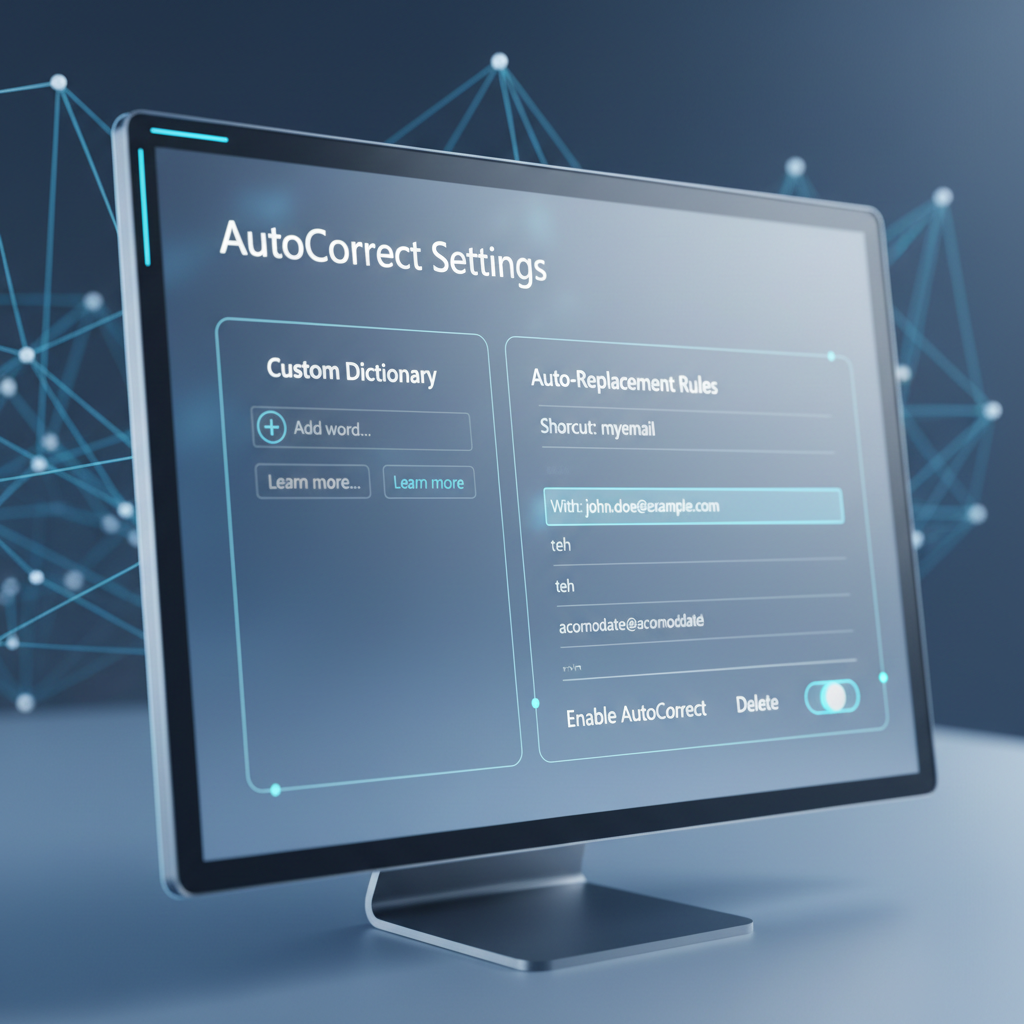
Custom Dictionaries and Auto-Replacement Rules
One of the most powerful features is the ability to create custom dictionaries and auto-replacement rules.
- Custom Dictionaries: Add industry-specific jargon, proper nouns, or unique spellings that the default dictionary might flag as errors. This ensures that your specialized vocabulary is recognized and not incorrectly "corrected."
- Auto-Replacement Rules: Set up shortcuts for frequently used words, phrases, or even entire sentences. For example, typing "myemail" could automatically expand to your full email address. This is incredibly efficient for repetitive tasks and standard responses.
Hotkeys and Accessibility Settings
Familiarize yourself with the dedicated hotkeys for features like word prediction, word completion, and voice typing. Assigning easy-to-reach key combinations can make these tools feel like a natural extension of your typing. For users with accessibility needs, explore settings that adjust prediction aggressiveness, font sizes for suggestions, or even integration with screen readers. These customizations ensure the tool works for you, not against you.
Multi-Language Support
If you work in multiple languages, ensure your writing assistant supports them. AutoCorrect PC includes multi-language dictionaries, allowing you to switch between languages effortlessly and receive accurate corrections and predictions for each. This is invaluable for global communication and multilingual content creation.
By actively configuring these settings, you transform a powerful tool into a personalized writing powerhouse, making your Windows 11 or 10 experience smoother and more productive than ever.
Comparing AutoCorrect PC to Other Solutions
When considering a writing assistant for Windows, it's important to understand how comprehensive solutions like AutoCorrect PC stack up against built-in Windows features, browser extensions, and cloud-based AI writers. The landscape of writing tools is diverse, but not all solutions offer the same level of integration and privacy.
| Feature | AutoCorrect PC (System-Wide) | Windows Built-in (Limited) | Browser Extensions (Browser Only) | Cloud AI Writers (Web Only) |
|---|---|---|---|---|
| Works Across Desktop Apps | ✓ | ✗ | ✗ | ✗ |
| Autocorrect | ✓ | Some | ✓ | ✗ |
| Word Predictions | ✓ | Limited | Limited | ✗ |
| Grammar Correction | ✓ | Limited | ✓ | ✓ |
| Voice Typing | ✓ | Limited | Some | Some |
| AI Writing | ✓ (Opt-in Cloud) | ✗ | Some | ✓ |
| Multi-Language Dictionaries | ✓ | Some | Some | Some |
| Local Processing for Typing Features | ✓ | ✓ | ✗ | ✗ |
This comparison highlights a critical distinction: system-wide functionality and local processing. While Windows offers basic autocorrect in some applications, and browser extensions handle web content, AutoCorrect PC provides a unified, private, and powerful writing experience across your entire desktop. This integrated approach ensures consistency and efficiency, regardless of where you are typing on your PC.
Future Trends in Windows Writing Assistance
The evolution of writing assistance on Windows is far from over. As technology advances, we can expect even more sophisticated and integrated tools to emerge. Looking ahead to 2026 and beyond, several key trends will shape the future of how we write on our PCs.
Deeper AI Integration and Personalization
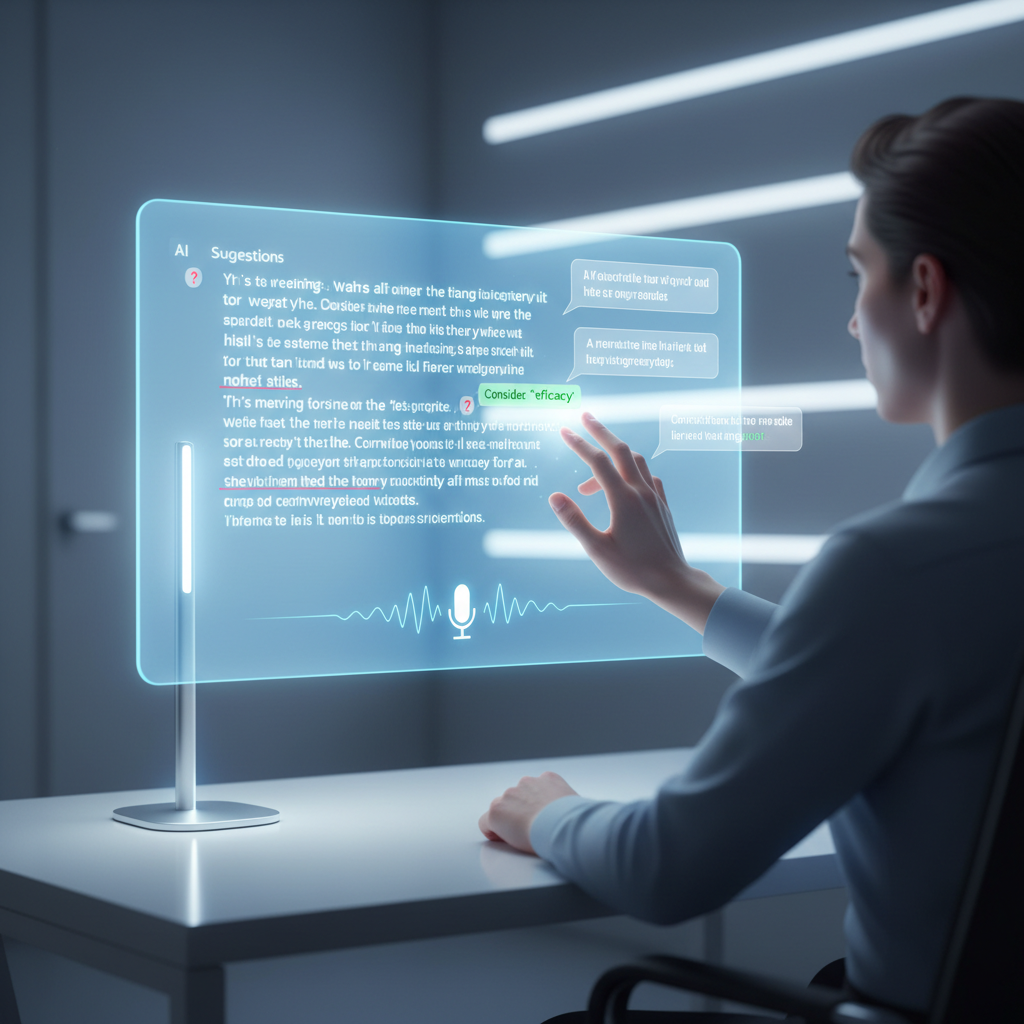
AI will continue to play a more central role, moving beyond simple text generation to offer highly personalized writing coaching. Imagine an AI that understands your unique writing style, helps you develop your voice, and even suggests improvements for specific audiences. This could include:
- Contextual tone adjustment: Automatically adjusting your writing for formal emails versus casual chats.
- Style consistency: Ensuring brand voice or personal style is maintained across all your communications.
- Learning disabilities support: Tailoring assistance for specific learning challenges, offering more targeted help.
Enhanced Multimodal Input
While voice typing is powerful, future systems will likely integrate other forms of input more seamlessly. This could include:
- Gesture-based typing: Using hand movements with a webcam to type.
- Eye-tracking input: For users with severe motor impairments, typing with their eyes.
- Brain-computer interfaces (BCI): While still nascent, BCIs could eventually allow direct thought-to-text conversion, revolutionizing accessibility and speed.
Seamless Cross-Device Experience
The line between desktop, mobile, and web will continue to blur. Future writing assistants will offer a truly seamless experience across all your devices, ensuring your custom dictionaries, preferences, and AI learnings are synchronized and available wherever you are typing. This will create an uninterrupted flow, regardless of the device you are using. The goal is to make your writing assistant an invisible, ever-present partner, adapting to your needs and environment.
Conclusion
Mastering autocorrect and smart writing tools on Windows in 2026 is about more than just fixing typos; it's about embracing a more efficient, accurate, and intelligent way to communicate. From system-wide autocorrection and predictive text to advanced grammar checks, AI writing, and voice typing, the tools available today are transforming productivity for everyone from students to seasoned professionals.
By choosing a privacy-first solution like AutoCorrect PC, you gain not only a powerful writing assistant but also peace of mind, knowing your data remains secure and local. As technology continues to evolve, integrating these smart features into your daily workflow will be key to staying ahead, enhancing your communication, and ultimately, achieving more with less effort. Don't let outdated typing habits hold you back; empower your Windows PC with the intelligence it needs to help you write your best.
Frequently Asked Questions
Q1: What is the main difference between built-in Windows autocorrect and a system-wide solution like AutoCorrect PC?
A1: Built-in Windows autocorrect is typically limited to specific Microsoft applications like Word or Outlook. A system-wide solution like AutoCorrect PC extends autocorrection, predictive text, grammar correction, and other features to any application or text field on your Windows desktop, including browsers, chat apps, and specialized software. This provides a consistent and seamless writing experience across your entire PC.
Q2: How does AutoCorrect PC handle my privacy, especially with features like AI writing?
A2: AutoCorrect PC prioritizes privacy. Core typing features like autocorrect, word completion, next-word prediction, speech transcription, grammar correction, and dictionary lookups are processed locally on your device. This means your everyday typing data never leaves your computer. The AI Writer feature is the only component that communicates with external servers, and it only does so when you explicitly choose to use it, giving you full control over your data.
Q3: Can AutoCorrect PC help with writing in multiple languages?
A3: Yes, AutoCorrect PC includes support for multi-language dictionaries. This allows you to switch between different languages and receive accurate autocorrection, word predictions, and grammar suggestions tailored to the specific language you are using. This feature is particularly beneficial for users who communicate or write content in more than one language.
Q4: Is voice typing accurate enough for professional use?
A4: Modern voice typing technology, especially in solutions like AutoCorrect PC, has significantly improved in accuracy and responsiveness. For many users, speaking can be faster than typing, and it offers a valuable alternative for drafting emails, documents, and other content, particularly for those who experience typing fatigue or have accessibility needs. With a good microphone and clear speech, it can be highly effective for professional use.
Q5: How can I customize AutoCorrect PC to better suit my typing style?
A5: AutoCorrect PC offers extensive customization options. You can create custom dictionaries to add specialized vocabulary or proper nouns, set up auto-replacement rules for frequently used phrases, and configure hotkeys for quick access to features like word prediction and voice typing. These settings allow you to tailor the assistant to your unique needs, making it a more personalized and efficient tool.
Q6: What if I encounter a bug or need assistance with AutoCorrect PC?
A6: AutoCorrect PC provides dedicated support to help users with any issues or questions. You can typically find support resources, FAQs, and contact information on the official website. Regular updates are also released to improve performance, add new features, and address any bugs, ensuring a smooth and reliable user experience.
Ready to Transform Your Windows Typing Experience?
Don't let typing errors and slow input hinder your productivity. Discover how AutoCorrect PC can revolutionize your writing with system-wide autocorrect, predictive text, grammar correction, AI writing, and voice typing. Visit our website today to learn more and download your smart writing assistant for Windows.
Experience Smart Writing with AutoCorrect PC

Related Posts
Best Text-to-Speech Software for Windows in 2026
Discover the top text-to-speech (TTS) software for Windows in 2026, offering natural voices, advanced features, and seamless integration to boost accessibility, productivity, and learning.
Read post →Top Productivity Software for Windows: A 2026 Buyer's Guide
Discover the best productivity software for Windows in 2026, focusing on AI writing assistants, system-wide autocorrect, and privacy. This guide helps you choose tools that enhance writing, streamline workflow, and save time.
Read post →Best Free Productivity Tools for Windows in 2026
Discover the top free productivity tools for Windows in 2026, featuring advanced AI, intelligent automation, and intuitive interfaces to streamline your workflow and boost efficiency. Learn about writing assistants, predictive text, grammar correction, and voice typing.
Read post →Want system-wide predictions, autocorrect, and voice typing on Windows?