
The Ultimate Guide to Autocorrect for Windows in 2026
Discover why native Windows autocorrect falls short and how system-wide writing assistants can boost your productivity and accuracy across all applications. Learn about advanced features like predictive text and AI writing tools.
Key Takeaways
Native Windows Autocorrect is Limited: While Windows 10 and 11 offer basic autocorrect and spell-check features, they are often inconsistent, app-specific, and lack advanced capabilities like system-wide predictive text or AI writing.
System-Wide Solutions are Superior: For true productivity and error reduction across all applications, a dedicated writing assistant like AutoCorrect PC is essential. It provides consistent autocorrect, predictive text, grammar correction, and AI tools everywhere you type.
Boost Productivity and Accuracy: Modern writing assistants significantly reduce keystrokes, minimize errors, and help maintain writing flow, leading to faster and cleaner output.
Beyond Basic Corrections: Advanced tools offer features such as word prediction, voice typing, and AI-powered text generation or rewriting, transforming the writing experience.
Privacy-First Approach: Reputable writing assistants process most typing-related features locally on your device, ensuring your everyday typing data remains private.
Choose the Right Tool for Your Needs: Evaluate your primary writing activities and choose a solution that offers comprehensive, system-wide support rather than relying on fragmented, app-specific tools.
In today's fast-paced digital world, clear, concise, and error-free writing is more important than ever. Whether you're drafting an urgent email, writing a detailed report, or simply chatting with colleagues, typos and grammatical mistakes can undermine your message and professionalism. For Windows users, the quest for seamless writing assistance often leads to questions about autocorrect capabilities. While Windows has made strides in integrating basic typing aids, a truly comprehensive solution for autocorrect for Windows often requires looking beyond built-in features. This guide explores the landscape of autocorrect and smart writing assistance on Windows in 2026, highlighting how you can achieve peak typing efficiency and accuracy across all your applications.
The Evolution of Autocorrect on Windows
For years, Windows users have experienced a fragmented approach to autocorrect and spell-checking. Unlike the seamless, system-wide experience found on mobile devices, desktop operating systems have historically relied on individual applications to manage their own text correction. This section delves into the native capabilities and their limitations.
Native Windows Autocorrect Capabilities
Windows 10 and Windows 11 have introduced some built-in features to assist with typing. These can typically be found in the system settings under "Time & Language" and "Typing." Users can enable options like "Autocorrect misspelled words" and "Highlight misspelled words." These features are designed to provide basic spell-checking and automatic corrections, particularly within Universal Windows Platform (UWP) apps and some system text fields.
For example, if you're using Microsoft Edge or the native Mail app, you'll likely see these corrections in action. The system attempts to learn from your typing habits and offers suggestions. However, the effectiveness and consistency of these native tools vary greatly.
Tip: To access native Windows typing settings, go to
Settings > Time & Language > Typing. Here, you can toggle basic autocorrect and text suggestion features on or off.
Limitations of Built-in Features
Despite these advancements, native Windows autocorrect often falls short for several reasons:
Inconsistent Across Applications: The most significant drawback is its inconsistency. While it might work well in some Microsoft apps, it often doesn't extend to popular third-party desktop applications, web browsers (outside of specific text fields), or specialized software. This means you might find yourself typing "teh" and having it corrected to "the" in one app, but not in another.
Basic Functionality: Native autocorrect primarily focuses on simple spelling errors. It generally lacks advanced features like predictive text (suggesting the next word), sophisticated grammar correction, or AI-powered writing assistance that can rephrase sentences or generate content.
Limited Customization: Customizing the dictionary or adding specific words that are frequently misspelled can be cumbersome or limited. Users often report frustration with the inability to easily manage their personal dictionaries across the entire system.
Lack of Learning: While it does learn some words, it doesn't offer the deep, adaptive learning capabilities that modern writing assistants do, which can adapt to your unique writing style and vocabulary over time.
This inconsistency and lack of advanced features often lead users to seek more robust solutions, especially those who rely heavily on typing for their daily work or studies.
The Need for System-Wide Writing Assistance
Given the limitations of native Windows features, many users, from professional writers to students and business professionals, find themselves in need of a more comprehensive solution. A system-wide writing assistant addresses these gaps by providing consistent, intelligent support across all applications.
Why Fragmented Tools Aren't Enough
Relying on multiple, disconnected tools for writing assistance creates more problems than it solves:
Context Switching: Copying text from one application to a web-based grammar checker, making corrections, and then pasting it back is inefficient and breaks your writing flow.
Inconsistent Experience: Each tool might have its own dictionary, correction rules, and interface, leading to a disjointed and often frustrating user experience.
Limited Scope: Browser extensions, while useful for web-based writing, do not assist with desktop applications like Microsoft Word, Notepad, or specialized industry software. Similarly, an autocorrect feature within a specific email client won't help you with a presentation in PowerPoint.
The Benefits of a Unified Solution
A smart writing assistant that works system-wide, like AutoCorrect PC, offers a unified and powerful approach to improving your typing and writing experience. This means:
Consistency Everywhere: Whether you're writing in a browser, an email client, a word processor, a chat application, or even a coding environment, the same level of autocorrect, grammar checking, and predictive text is available. This eliminates the frustration of features disappearing when you switch applications.
Enhanced Productivity: By reducing keystrokes through predictive text and word completion, and by instantly correcting errors, you can type significantly faster and with less effort. This allows you to maintain your focus on the content, not on correcting mistakes.
Improved Accuracy: Beyond basic spelling, a comprehensive tool can catch grammatical errors, suggest stylistic improvements, and ensure your writing is polished and professional. This is particularly beneficial for those who write frequently or for non-native English speakers.
Streamlined Workflow: All writing assistance features are integrated directly into your typing experience, eliminating the need to switch between different applications or web services. This seamless integration keeps you in your flow and maximizes efficiency.
The demand for such integrated solutions has grown exponentially as digital communication becomes central to almost every profession.
Key Features of a Smart Writing Assistant for Windows
Modern smart writing assistants for Windows go far beyond simple spell-checking. They integrate a suite of powerful tools designed to enhance every aspect of your typing and writing. AutoCorrect PC exemplifies this comprehensive approach, offering features that cater to a wide range of users.
Autocorrect and Word Completion
At its core, a smart writing assistant provides robust autocorrect functionality. Misspelled words are automatically corrected as you type, in any application, any text field, anywhere on your desktop. This immediate feedback prevents errors from accumulating and saves time on manual corrections.
Beyond simple corrections, word completion and word prediction significantly boost typing speed. As you start typing a word, the system suggests ways to finish it instantly. After you finish a word, it predicts the most likely next words, allowing you to insert them with a single keypress or click. This dramatically reduces keystrokes and helps maintain a fluid writing pace.
Grammar Correction and AI Writing
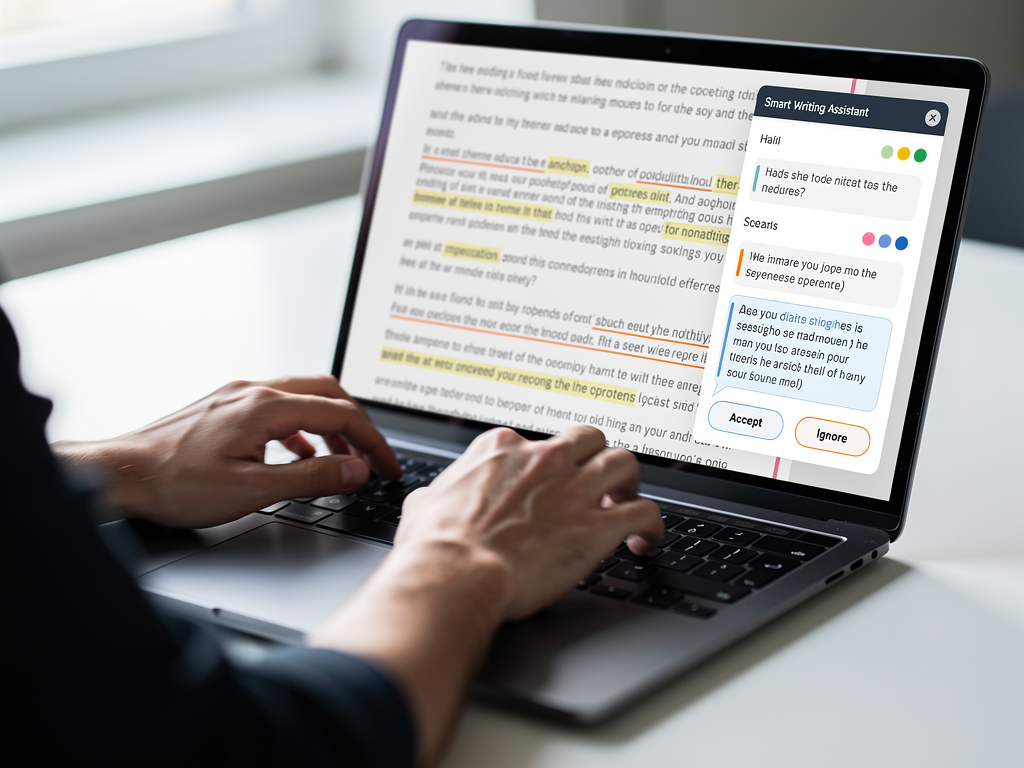
High-quality writing isn't just about correct spelling, it's also about proper grammar and effective communication. A smart writing assistant catches grammar mistakes at the sentence level and allows you to apply clean fixes in context. This means no more copying and pasting into a separate grammar checker.
Furthermore, the integration of AI writing capabilities is a game-changer. With tools like AutoCorrect PC, you can:
Generate Text: From a simple prompt, the AI can generate new content directly into your application.
Rewrite Text: Select existing text and prompt the AI to rephrase it, making it more concise, formal, or engaging.
Expand Text: Take a short sentence or paragraph and have the AI expand upon it, adding detail and depth.
These AI features act as a powerful co-pilot, helping you overcome writer's block, refine your message, and produce high-quality content more efficiently.
Voice Typing and Multi-Language Support
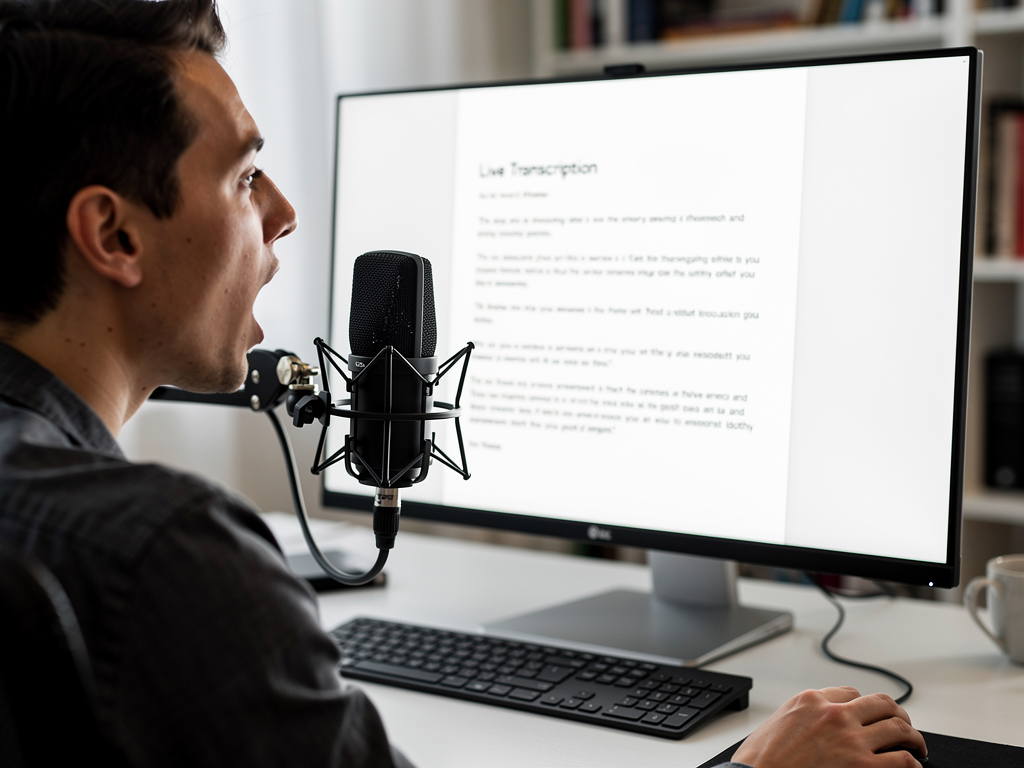
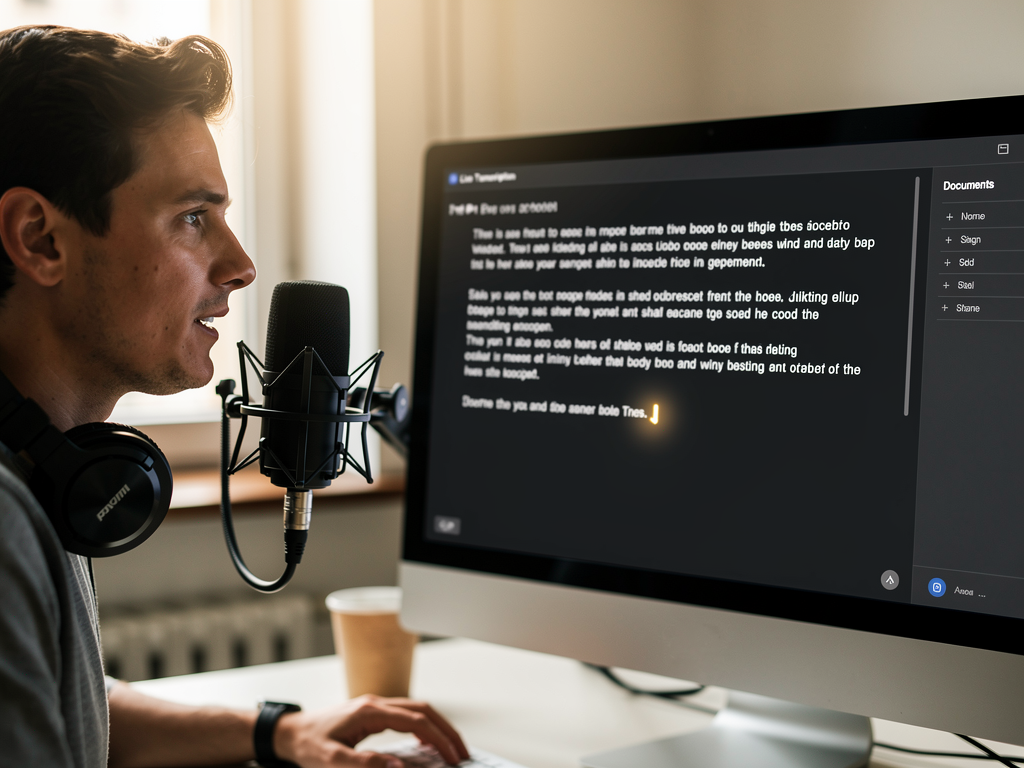
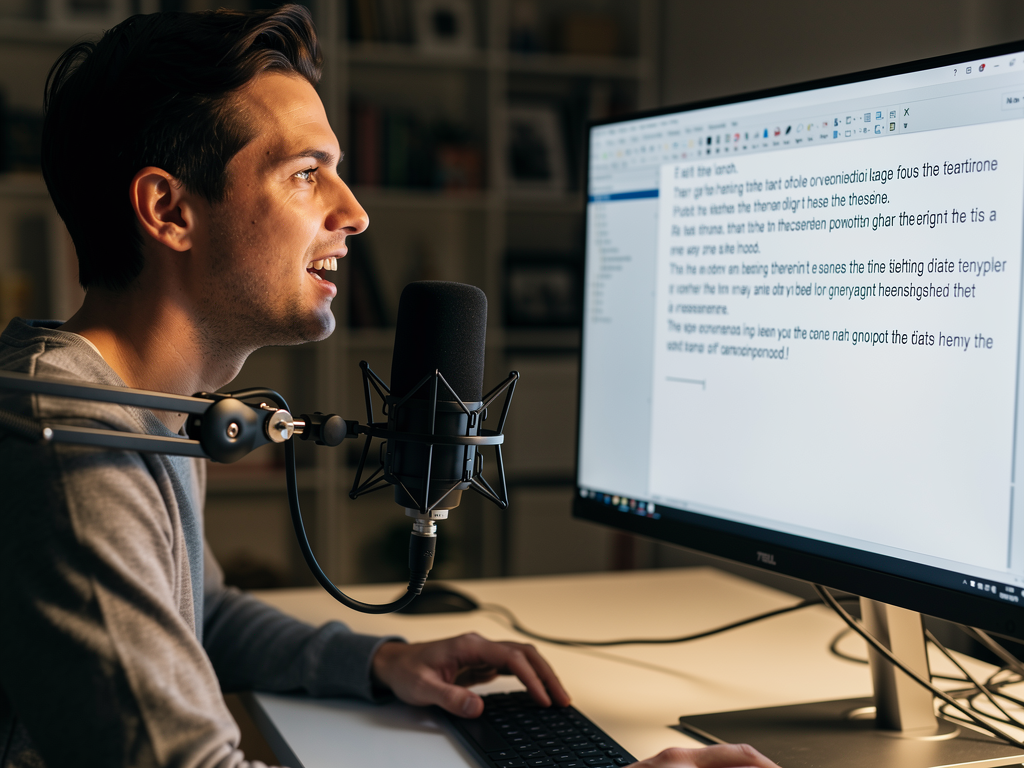
Voice typing, or speech-to-text, offers an alternative input method that can be incredibly useful for accessibility, speed, or simply when you want to rest your hands. Your spoken words are transcribed and inserted directly into whatever application you're working in, making it a truly system-wide dictation tool.
For users working in multiple languages or those who frequently interact with international content, multi-language dictionaries are indispensable. A good writing assistant supports various languages, ensuring accurate autocorrect, spell-checking, and predictions regardless of the language you are typing in. This global support is crucial in an interconnected world.
How AutoCorrect PC Transforms Your Windows Typing Experience
AutoCorrect PC stands out as a comprehensive smart writing assistant specifically designed to bring a seamless, mobile-like typing experience to your Windows desktop. It addresses the shortcomings of native Windows features by offering a unified platform for all your writing needs.
System-Wide Integration and Privacy
One of the defining advantages of AutoCorrect PC is its system-wide integration. Unlike browser extensions or app-specific tools, it works across all your desktop applications, web browsers, chat clients, and any other text field on your Windows machine. This means consistent autocorrect, predictive text, and grammar checks no matter where you are typing.
Crucially, AutoCorrect PC prioritizes user privacy. Most of its core typing features, including autocorrect, word completion, next-word prediction, speech transcription, grammar correction, and dictionary lookups, are processed locally on your computer. This "privacy-first" approach ensures that your everyday typing data remains on your device, giving you peace of mind. Only the AI Writer feature communicates with external servers, and only when you explicitly use it.
Boosting Productivity for Diverse Users
AutoCorrect PC is built to enhance productivity for a broad audience:
Professionals: Draft emails, reports, and presentations faster and with fewer errors, maintaining a polished professional image.
Students: Improve the quality and speed of essays, research papers, and notes, ensuring academic success.
Content Creators: Generate ideas, refine drafts, and publish error-free content more efficiently.
Accessibility Users: Voice typing and predictive text can significantly aid those with typing difficulties or repetitive strain injuries.
The ability to type faster, write cleaner, and leverage AI for content generation or refinement translates directly into saved time and reduced mental effort, allowing users to focus on the message rather than the mechanics of writing.
A Comparison with Other Solutions
To illustrate the unique value of AutoCorrect PC, consider this comparison:
| Feature | AutoCorrect PC | Browser Extensions (e.g., Grammarly) | Cloud AI Writers (e.g., ChatGPT) | Native Windows Features |
|---|---|---|---|---|
| Works Across Desktop Apps | ✓ Yes | ✗ No (browser only) | ✗ No (web only) | Limited |
| Autocorrect | ✓ System-wide | ✓ Some (browser) | ✗ No | Limited |
| Word Predictions | ✓ System-wide | Limited | ✗ No | Limited |
| Grammar Correction | ✓ System-wide | ✓ Yes (browser) | ✓ Yes | Limited |
| Voice Typing | ✓ System-wide | Limited | Some | ✗ No |
| AI Writing (Generate/Rewrite) | ✓ System-wide | Some | ✓ Yes | ✗ No |
| Multi-Language Dictionaries | ✓ Yes | Some | Some | Limited |
| Local Processing for Typing | ✓ Yes | ✗ No | ✗ No | ✓ Yes (basic) |
This table clearly demonstrates that while other tools offer specific functionalities, AutoCorrect PC provides a holistic, system-wide solution that integrates all these features directly into your Windows workflow, with a strong emphasis on local processing for privacy.
Setting Up and Customizing Your Writing Assistant
Getting started with a smart writing assistant like AutoCorrect PC is straightforward, and customizing it to fit your unique typing style and preferences is key to maximizing its benefits. This section guides you through the process.
Installation and Initial Setup
Installing AutoCorrect PC is typically a simple process, much like any other Windows application. You'll download the installer from the official website and follow the on-screen prompts. Once installed, the application usually runs in the background, integrating seamlessly with your operating system.
During the initial setup, the software might prompt you to enable certain features or grant necessary permissions for system-wide integration. It's important to allow these permissions for the assistant to function effectively across all your applications.
Personalizing Your Experience
A powerful writing assistant should adapt to you, not the other way around. AutoCorrect PC offers extensive customization options to tailor its behavior:
Custom Dictionary: Add specific words, names, or industry jargon that the assistant might not recognize by default. This ensures that unique terms are not flagged as errors.
Autocorrect Rules: While the default autocorrect is robust, you might have specific preferences for certain corrections. You can often add your own auto-replacement rules for frequently mistyped words or phrases. For example, you could set "omw" to automatically expand to "on my way."
Predictive Text Sensitivity: Adjust how aggressively the predictive text suggests words. Some users prefer more suggestions, while others prefer fewer to avoid distractions.
Hotkeys and Shortcuts: Configure custom hotkeys for quick access to features like word prediction, AI writing prompts, or voice typing activation. This can significantly speed up your workflow.
Language Settings: Easily switch between different language dictionaries if you frequently write in multiple languages.
Recommendation: Spend some time exploring the settings menu of your writing assistant. Personalizing these options can dramatically improve your overall typing experience and productivity.
Managing Privacy Settings
Given the sensitive nature of typing data, understanding and managing privacy settings is crucial. AutoCorrect PC's commitment to local processing for most features is a significant advantage. However, for features like AI writing that might involve cloud processing, be aware of how your data is handled.
Review Privacy Policy: Always review the privacy policy of any software you install, especially writing assistants.
Control AI Features: If you are concerned about data privacy, ensure you understand which features send data to external servers and how to control or disable them if necessary. AutoCorrect PC is transparent about its AI Writer communicating with servers only when explicitly used.
By taking these steps, you can ensure your writing assistant is not only powerful but also aligns with your privacy preferences.
Advanced Tips for Maximizing Your Writing Assistant
Once you've integrated a smart writing assistant like AutoCorrect PC into your Windows workflow, there are several advanced strategies you can employ to get the most out of its features and truly transform your typing experience.
Leverage Predictive Text and Word Completion
Many users enable predictive text but don't fully utilize its potential. Make it a habit to glance at the suggestions as you type. Instead of typing out entire words, use the suggested completions. This can save dozens, if not hundreds, of keystrokes per hour.
Practice with Hotkeys: Learn the hotkey for accepting suggestions (often
TaborEnter). The quicker you can accept a suggestion, the more seamlessly it integrates into your typing rhythm.Observe Patterns: Pay attention to the words and phrases your assistant suggests. Over time, you'll develop a sense of when a suggestion is likely to appear, allowing you to anticipate and type even faster.
Next-Word Prediction: Don't just stop at word completion. Utilize next-word prediction to string together common phrases and sentences with minimal effort. This is particularly useful for repetitive communication.
Master AI Writing for Efficiency
The AI writing capabilities are not just for generating entirely new content; they are powerful tools for editing and refining your existing text.
Rephrasing: Select a sentence or paragraph that doesn't quite sound right and use the AI to rephrase it. Experiment with prompts like "make this more concise," "make this more formal," or "make this more engaging."
Expanding Ideas: If you have a brief note or a bullet point, use the AI to expand it into a full paragraph. This can be a huge time-saver for drafting outlines or brainstorming.
Summarizing: Conversely, you can also use AI to condense lengthy text into a shorter summary, which is invaluable for reviewing documents or preparing quick overviews.
Overcoming Writer's Block: When you're stuck, use the AI to generate a few starting sentences or ideas based on a prompt. This can kickstart your creativity and get you back into the flow.
Remember that AI is a tool; always review and edit its output to ensure it aligns with your voice and intent.
Integrate Voice Typing into Your Workflow
Voice typing can be a powerful alternative to keyboard input, especially for longer passages or when your hands are tired.
Dictate Drafts: For initial drafts of emails, reports, or creative writing, speak your thoughts directly into the document. You can then go back and refine with the keyboard.
Accessibility: For users with physical limitations, voice typing can be a primary method of input, making digital communication more accessible.
Multitasking: In some scenarios, you might be able to dictate while performing other non-typing tasks, further boosting productivity.
Punctuation Commands: Learn the voice commands for punctuation (e.g., "period," "comma," "new paragraph") to make your dictation even more accurate and efficient.
Regular Maintenance and Updates
Like any software, keeping your writing assistant updated ensures you benefit from the latest features, bug fixes, and performance improvements.
Check for Updates: Regularly check for software updates within the application.
Review Performance: If you notice any slowdowns or unexpected behavior, check the application's support resources or settings. Sometimes, a simple restart or adjustment can resolve issues.
Refine Customizations: Your writing habits evolve. Periodically review your custom dictionary and auto-replacement rules to ensure they are still relevant and effective. Remove outdated entries and add new ones as needed.
By actively engaging with these advanced tips, you can transform your smart writing assistant from a simple correction tool into an indispensable partner in your daily digital life.
The Future of Writing on Windows
As technology continues to evolve at a rapid pace, the future of writing on Windows promises even more seamless integration, advanced intelligence, and personalized assistance. We are moving towards a world where our digital writing tools are not just reactive correctors but proactive partners in communication.
Hyper-Personalization and Adaptive Learning
Future writing assistants will likely feature even more sophisticated adaptive learning algorithms. They will not only learn your vocabulary and common phrases but also understand your unique writing style, tone preferences, and even emotional intent. This will allow for hyper-personalized suggestions that truly reflect your voice, whether you're writing a formal business proposal or a casual message to a friend. Imagine an assistant that knows when to suggest a more empathetic tone or a more assertive one, based on context and your past writing.
Deeper AI Integration and Contextual Understanding
The integration of artificial intelligence will continue to deepen, moving beyond simple text generation or rewriting. AI will gain a more profound contextual understanding of your documents and tasks. For example, an AI might analyze a meeting transcript and automatically draft follow-up emails, or review a research paper and suggest relevant citations based on your writing. This level of contextual awareness will transform how we interact with information and generate content.
Multi-Modal Input and Output
While voice typing is already a reality, the future will see even more advanced multi-modal input options. This could include gesture-based typing, brain-computer interfaces (BCI) for direct thought-to-text, or even seamless transitions between speaking, typing, and drawing to express ideas. Output might also become multi-modal, with the assistant not just suggesting text but also generating relevant images, diagrams, or even short video clips to accompany your writing.
Enhanced Collaboration and Accessibility
Writing assistants will play an even greater role in collaborative environments, offering real-time suggestions and corrections for multiple users working on the same document. This could include identifying potential misunderstandings in communication or suggesting ways to harmonize different writing styles within a team. For accessibility, these tools will become even more intuitive and adaptable, catering to a wider range of needs and making digital communication truly inclusive for everyone.
The goal is to make the act of writing as effortless and natural as thinking itself, allowing individuals to fully express their ideas without the friction of mechanical input or the worry of errors. Tools like AutoCorrect PC are at the forefront of this evolution, continually pushing the boundaries of what's possible in smart writing assistance on Windows.
Conclusion
In 2026, the landscape of writing on Windows has evolved significantly. While native Windows features offer basic autocorrect and spell-checking, they often fall short of providing the consistent, system-wide, and intelligent assistance that modern users demand. The fragmentation of these built-in tools and the limitations of app-specific solutions highlight the critical need for a comprehensive smart writing assistant.
Tools like AutoCorrect PC bridge this gap by offering a unified platform that integrates autocorrect, predictive text, grammar correction, AI writing, and voice typing across all your Windows applications. This not only boosts typing speed and accuracy but also streamlines your workflow, reduces mental fatigue, and enhances the overall quality of your written communication. With a strong emphasis on privacy through local processing, AutoCorrect PC empowers users to write faster and cleaner, maintaining their flow and focusing on the message.
As we look to the future, writing assistants will continue to become more intelligent, personalized, and seamlessly integrated into our digital lives. Embracing these advanced tools today is not just about correcting typos; it's about transforming your entire writing experience, unlocking new levels of productivity, and ensuring your words always make the intended impact.
Frequently Asked Questions (FAQs)
Q1: Is there a native autocorrect for Windows that works everywhere?
A1: Windows 10 and 11 have built-in autocorrect and spell-check features, but they are often inconsistent and primarily work within Universal Windows Platform (UWP) apps and some system text fields. They do not provide system-wide, consistent autocorrect across all third-party desktop applications and web browsers. For truly universal autocorrect, a dedicated smart writing assistant like AutoCorrect PC is required.
Q2: How is AutoCorrect PC different from Grammarly or other browser extensions?
A2: The main difference is system-wide integration. Grammarly and most other browser extensions primarily work within your web browser or specific supported applications. AutoCorrect PC, on the other hand, works across all applications on your Windows desktop, including word processors, email clients, chat apps, and specialized software, providing consistent writing assistance everywhere you type. AutoCorrect PC also processes most typing features locally for enhanced privacy.
Q3: Can AutoCorrect PC help with grammar mistakes, not just spelling?
A3: Yes, absolutely. AutoCorrect PC includes robust grammar correction capabilities that catch mistakes at the sentence level and allow you to apply fixes directly in context, without needing to copy and paste your text into a separate tool.
Q4: What is AI writing, and how does AutoCorrect PC use it?
A4: AI writing refers to using artificial intelligence to generate, rewrite, or expand text based on your prompts or selected content. AutoCorrect PC integrates AI writing features that allow you to generate new text from a simple prompt, rephrase existing sentences for clarity or tone, or expand short notes into more detailed paragraphs, all directly within the application you're working in.
Q5: Is my typing data private with AutoCorrect PC?
A5: Yes, privacy is a core focus for AutoCorrect PC. Most of its essential typing features, including autocorrect, word completion, predictive text, speech transcription, grammar correction, and dictionary lookups, are processed locally on your computer. This means your everyday typing data stays on your device. The AI Writer feature is the only component that communicates with external servers, and only when you explicitly choose to use it.
Q6: Can I use voice typing with AutoCorrect PC?
A6: Yes, AutoCorrect PC includes a voice typing (speech-to-text) feature. You can speak instead of type, and your voice will be transcribed and inserted directly into whatever application you are currently using, offering a convenient hands-free input method.
Q7: Is AutoCorrect PC suitable for non-native English speakers?
A7: Definitely. AutoCorrect PC's comprehensive features, including robust autocorrect, predictive text, grammar correction, and AI writing tools, can significantly assist non-native English speakers in producing clear, accurate, and professional-sounding text across all their Windows applications.
Elevate Your Typing Experience Today
Ready to transform your Windows typing experience? Say goodbye to frustrating typos, inconsistent corrections, and fragmented writing tools. Download AutoCorrect PC now and discover the power of system-wide autocorrect, predictive text, grammar correction, AI writing, and voice typing that works seamlessly across all your applications. Experience faster, cleaner, and smarter writing on your Windows PC.
Download AutoCorrect PC for Windows

Related Posts
Best Text-to-Speech Software for Windows in 2026
Discover the top text-to-speech (TTS) software for Windows in 2026, offering natural voices, advanced features, and seamless integration to boost accessibility, productivity, and learning.
Read post →Top Productivity Software for Windows: A 2026 Buyer's Guide
Discover the best productivity software for Windows in 2026, focusing on AI writing assistants, system-wide autocorrect, and privacy. This guide helps you choose tools that enhance writing, streamline workflow, and save time.
Read post →Best Free Productivity Tools for Windows in 2026
Discover the top free productivity tools for Windows in 2026, featuring advanced AI, intelligent automation, and intuitive interfaces to streamline your workflow and boost efficiency. Learn about writing assistants, predictive text, grammar correction, and voice typing.
Read post →Want system-wide predictions, autocorrect, and voice typing on Windows?