
Enable Predictive Text on Windows 10 & 11 for Faster Typing
Boost your typing speed and accuracy by enabling predictive text on Windows 10 and 11. Learn how to activate native text suggestions and explore advanced tools like AutoCorrect PC for system-wide assistance and grammar correction.
Key Takeaways
Boost Productivity: Predictive text significantly speeds up typing and reduces errors across all Windows applications. Built-in Windows Features: Windows 10 and 11 offer native text suggestions for both physical and on-screen keyboards. Enhanced Solutions: Tools like AutoCorrect PC provide advanced features beyond basic Windows predictive text, including system-wide autocorrect, grammar correction, and AI writing. Customization is Key: Tailor predictive text settings to your specific needs, including language preferences and dictionary management. Accessibility Benefits: Predictive text is invaluable for users with typing challenges or those seeking to improve writing efficiency. Future-Proof Your Workflow: Integrating advanced typing assistants prepares you for evolving digital communication demands.
In the fast-paced digital landscape of 2026, efficient communication is paramount. Whether you're crafting an important business email, writing a college essay, or simply chatting with friends, typing speed and accuracy directly impact your productivity and clarity. Predictive text, a feature once primarily associated with mobile devices, has become an indispensable tool for Windows users, offering a significant boost to typing efficiency. This article will guide you through enabling and optimizing predictive text on your Windows PC, exploring both the native functionalities and advanced solutions like AutoCorrect PC that elevate your writing experience.
Understanding Predictive Text and Its Benefits
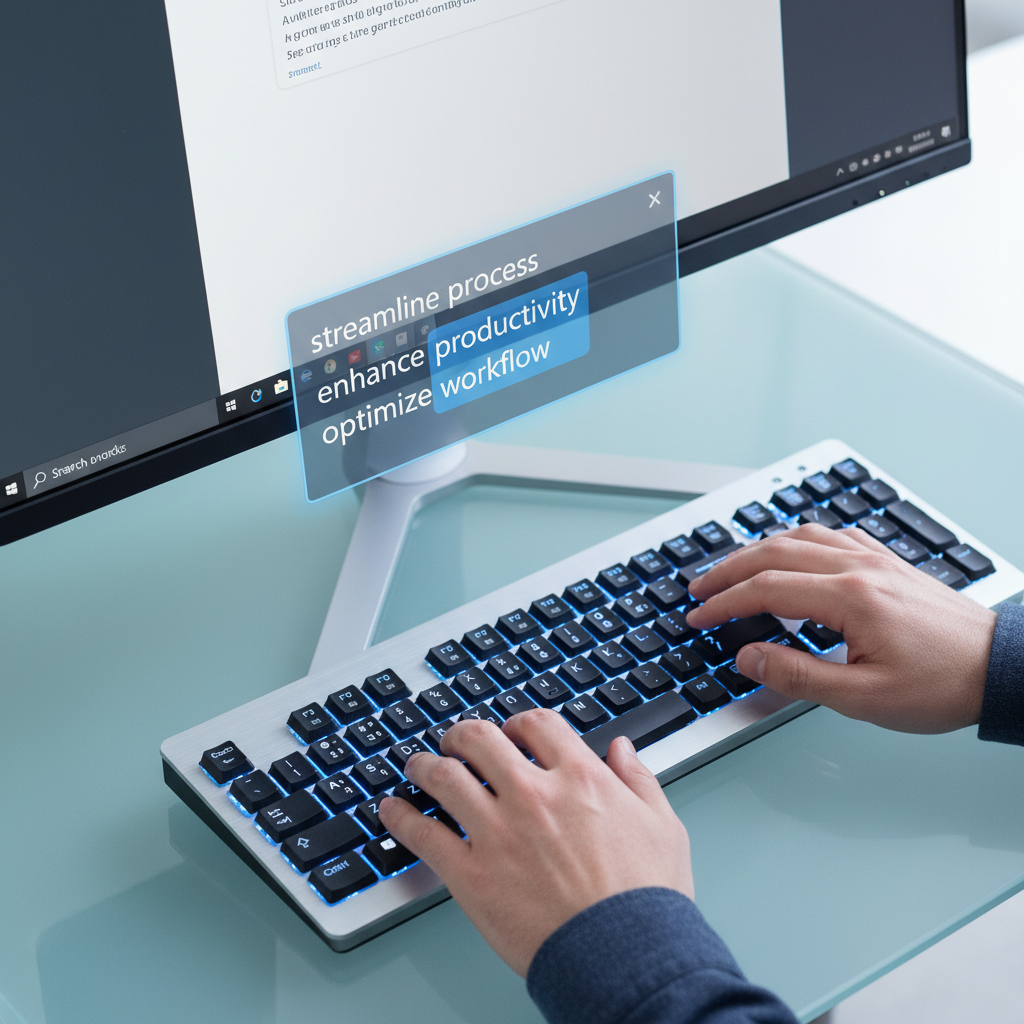
Predictive text is a technology that suggests words or phrases as you type, anticipating what you intend to write based on your input, common linguistic patterns, and sometimes even your personal writing style. It's designed to minimize keystrokes, reduce typos, and accelerate the writing process. Imagine typing "docu" and having "document" appear as a suggestion, or finishing a word and seeing the most likely next words to complete your sentence. This seemingly small convenience accumulates into substantial time savings and a smoother writing flow over time.
The benefits extend beyond just speed. For individuals who struggle with typing due to physical limitations, learning disabilities, or even just slow typing habits, predictive text acts as a powerful assistive technology. It helps reduce cognitive load by allowing users to focus more on ideas and less on the mechanics of spelling and grammar. Furthermore, for non-native English speakers, it can be an invaluable aid in expanding vocabulary and improving written accuracy, acting as a real-time language tutor. In 2026, as our reliance on digital communication grows, mastering tools like predictive text is no longer a luxury but a necessity for staying competitive and effective.
Native Predictive Text in Windows 10 and 11
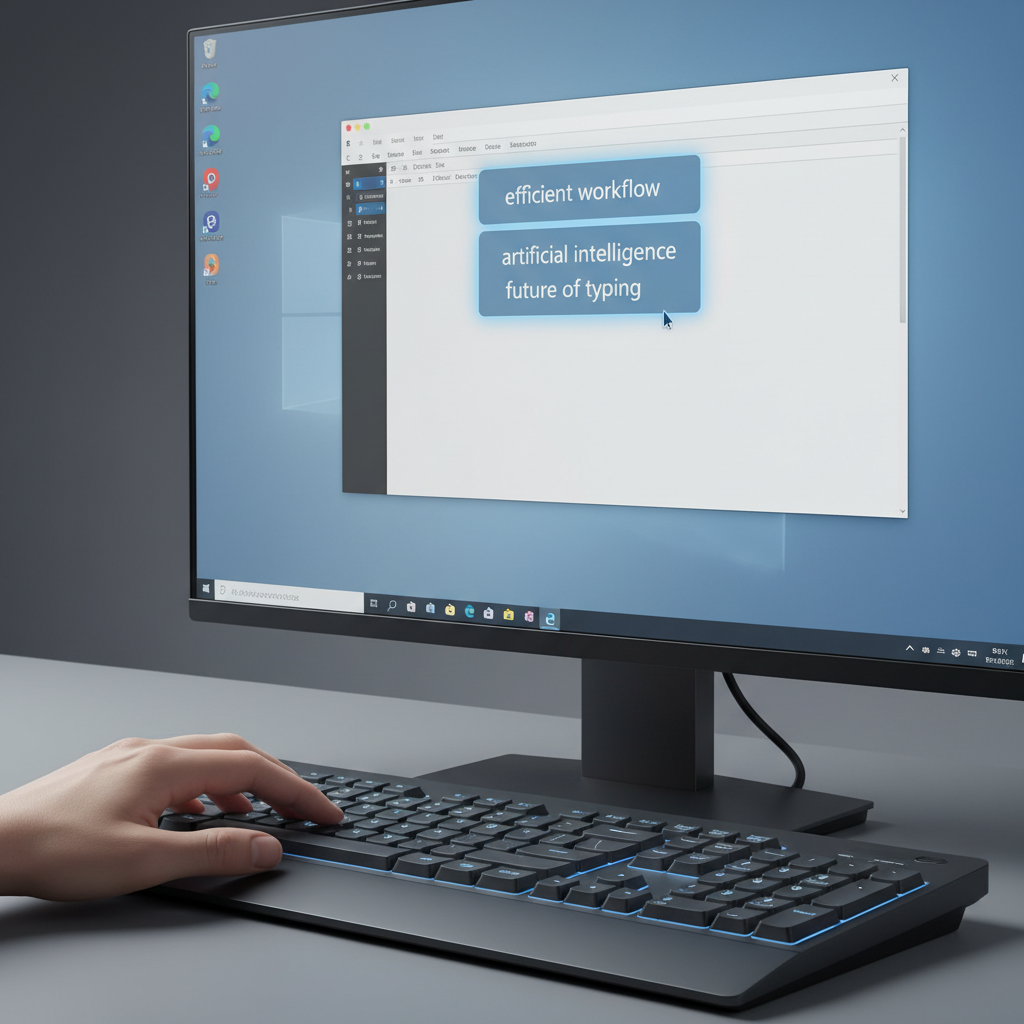
Microsoft has integrated basic predictive text capabilities directly into its Windows operating system, offering a foundational level of assistance for users. While not as comprehensive as dedicated writing assistants, these built-in features are a great starting point for anyone looking to enhance their typing.
Enabling Predictive Text on Windows 11
For those running Windows 11, the process to enable predictive text is straightforward:
- Open Settings: Click the Start button, then select the gear icon for "Settings," or simply press
Windows key + I. - Navigate to Time & Language: In the left-hand menu, click on "Time & language."
- Select Typing: On the right side, choose "Typing."
- Toggle Text Suggestions: Under the "Touch keyboard" section (even for physical keyboards), you'll find options. Look for "Show text suggestions when typing on the physical keyboard" and toggle it to "On." You can also enable "Multilingual text suggestions" if you frequently type in multiple languages.
Once enabled, you'll start seeing word suggestions appear above your cursor as you type in various applications, including web browsers, Microsoft Office programs, and chat clients. You can select a suggestion by clicking it, pressing the Up arrow key and then Enter, or sometimes by pressing the spacebar.
Enabling Predictive Text on Windows 10
Windows 10 also provides similar functionality, though the navigation might differ slightly:
- Open Settings: Click the Start button and select "Settings."
- Go to Devices: Choose "Devices."
- Select Typing: In the left-hand pane, click "Typing."
- Activate Text Suggestions: Under the "Hardware keyboard" section, turn on "Show text suggestions as I type." You might also find an option for "Show text suggestions as I type on the software keyboard" for the on-screen keyboard.
It's important to note that while these native features are helpful, their scope is generally limited to basic word prediction and may not include advanced functionalities like contextual grammar correction or AI writing tools. For a more robust solution, users often turn to third-party applications.
Beyond Basic: Enhancing Predictive Text with AutoCorrect PC
While Windows' native predictive text offers a good starting point, for users who demand a more comprehensive and intelligent writing assistant, solutions like AutoCorrect PC truly shine. AutoCorrect PC is designed to operate system-wide, offering an integrated and powerful suite of tools that go far beyond simple word suggestions.
AutoCorrect PC provides a seamless experience, integrating advanced predictive text with a host of other productivity-boosting features. This means you're not just getting word suggestions, but a complete writing ecosystem that adapts to your needs. The application aims to keep you "in your flow," minimizing interruptions and maximizing efficiency, whether you're drafting a complex report or a quick message.
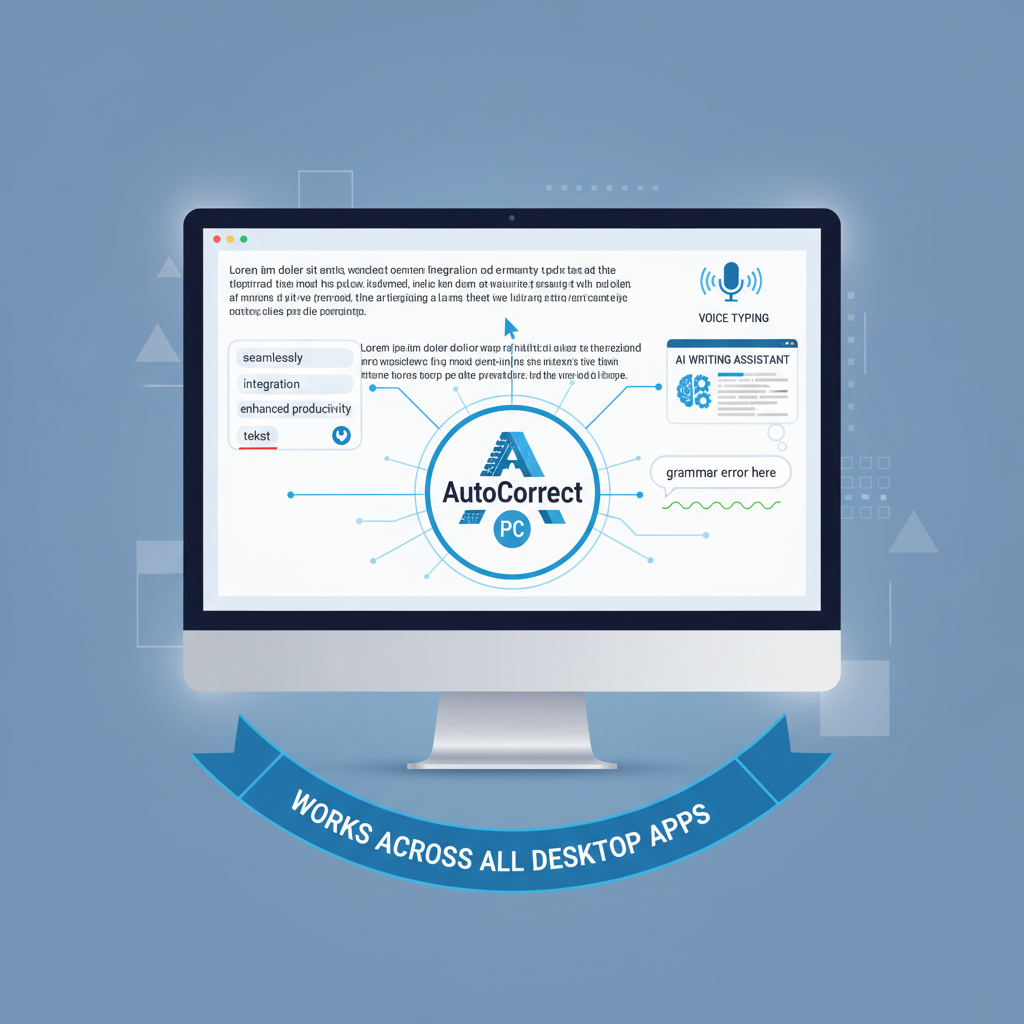
One of the key differentiators of AutoCorrect PC is its ability to work across all your desktop applications. Unlike some browser-specific extensions or limited in-app features, AutoCorrect PC ensures consistent assistance wherever you type. This universal compatibility is crucial for a truly frictionless writing experience in 2026, where users frequently switch between various programs for work, study, and personal communication.
Advanced Features of AutoCorrect PC for Superior Typing
AutoCorrect PC isn't just about predicting the next word; it's a holistic writing assistant packed with features designed to make your typing faster, cleaner, and more intelligent. Let's delve into some of these advanced capabilities.
System-Wide Autocorrect
Imagine typing a common misspelling like "teh" and having it instantly corrected to "the," no matter which application you're in. AutoCorrect PC offers system-wide autocorrect, automatically fixing common typos and grammatical errors as you type. This feature is a game-changer for maintaining professionalism and accuracy without constantly stopping to manually correct mistakes. It learns from your habits and can be customized, allowing you to add your own frequently misspelled words or specific industry jargon.
Intelligent Word Predictions and Completion
Beyond simple next-word suggestions, AutoCorrect PC provides intelligent word predictions and word completion. As you start typing a word, it offers suggestions to finish it instantly, reducing keystrokes. After you complete a word, it suggests the most likely next words, helping you construct sentences more rapidly and coherently. This predictive power is particularly useful for long-form writing, where maintaining momentum is key. Hotkeys for easy access ensure that these suggestions are always at your fingertips without breaking your rhythm.
Grammar Correction in Context
One of the most significant advantages of AutoCorrect PC is its integrated grammar correction. Instead of needing to copy and paste text into a separate grammar checker, AutoCorrect PC catches grammatical mistakes at the sentence level and provides clean, contextual fixes directly within your current application. This real-time feedback not only improves the quality of your writing but also serves as a learning tool, helping you understand and avoid common errors. This is crucial for students, professionals, and anyone who needs to produce polished written content.
AI Writing and Voice Typing
In 2026, AI is transforming how we write, and AutoCorrect PC embraces this evolution. Its AI Writer feature allows you to generate, rewrite, or expand text from a simple prompt or selected text. Need to rephrase a sentence, summarize a paragraph, or brainstorm ideas? The AI Writer can assist, inserting results directly into your application. Additionally, for those times when typing feels too slow or cumbersome, voice typing (speech-to-text) allows you to speak your thoughts, and AutoCorrect PC transcribes them directly into your document or message. This blend of AI and voice input offers unparalleled flexibility and efficiency.
These advanced features collectively create a powerful writing environment, making AutoCorrect PC an essential tool for anyone serious about optimizing their typing experience on Windows.

Customizing Your Predictive Text Experience
Optimizing predictive text for your specific needs is crucial for maximizing its benefits. Both native Windows features and advanced tools like AutoCorrect PC offer customization options that can significantly enhance your typing efficiency.
Language and Dictionary Management
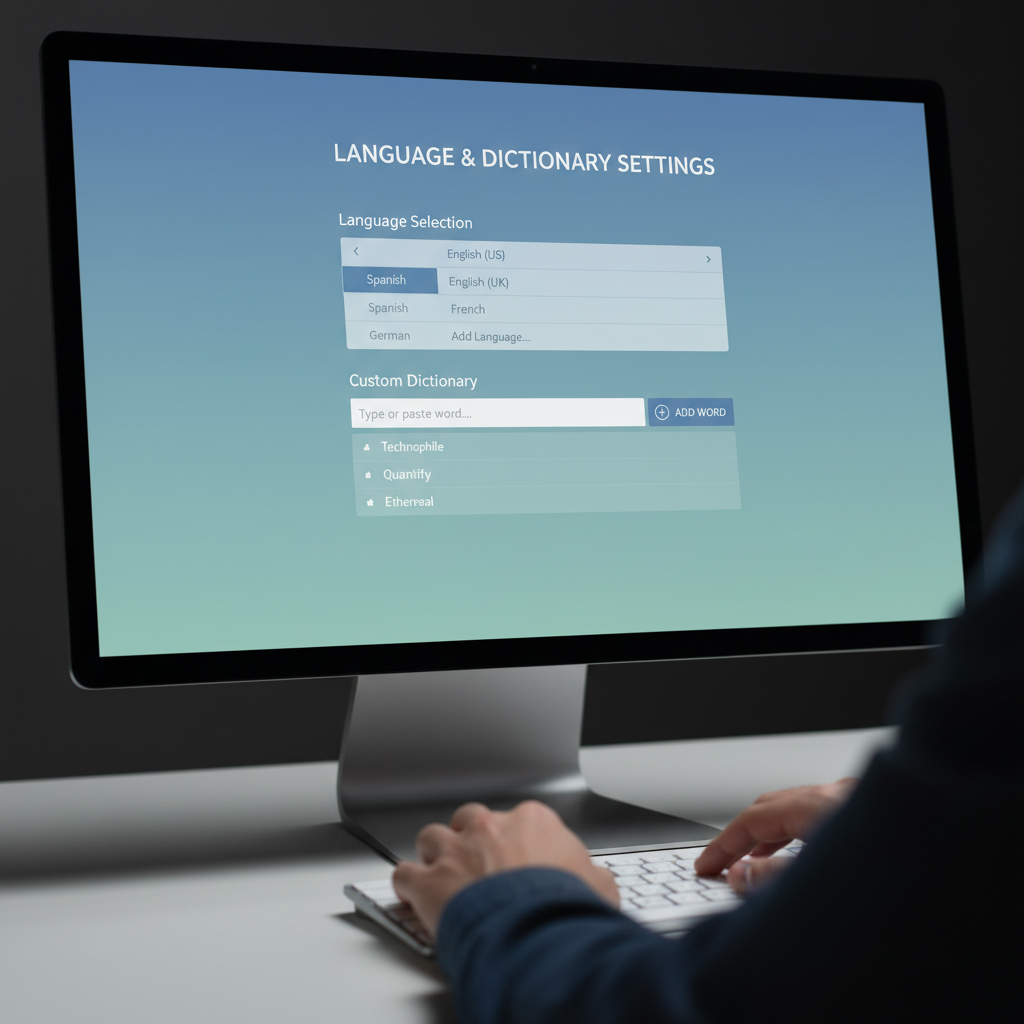
One of the first things to consider is language. If you work in multiple languages, ensure your predictive text settings reflect this. Windows allows you to enable predictive text for various languages, which is vital for accurate suggestions. AutoCorrect PC takes this further with multi-language dictionaries, ensuring that its predictions and autocorrect functions are precise across different linguistic contexts. You can often add custom words to your dictionary, which is particularly useful for specialized terminology, proper nouns, or unique brand names that might not be in standard dictionaries. This personalization helps prevent incorrect corrections and improves the relevance of suggestions.
Personalizing Suggestions and Learning
The effectiveness of predictive text largely depends on its ability to learn and adapt to your writing style. Some systems allow you to personalize suggestions by analyzing your past writing, prioritizing words and phrases you frequently use. This "learning" aspect means that over time, the suggestions become more relevant and accurate to your unique communication patterns.
Consider these customization tips:
Review and Accept/Reject Suggestions: Actively engaging with suggestions helps the system learn. Accepting good suggestions reinforces them, while ignoring irrelevant ones signals the system to deprioritize them. Add Custom Entries: For industry-specific jargon, unique names, or acronyms, add them to your personal dictionary. This prevents them from being flagged as misspellings or receiving irrelevant suggestions. Adjust Sensitivity: If available, experiment with the sensitivity of word completion or prediction to find a balance that feels natural, not intrusive. Privacy Settings: Be aware of privacy settings, especially with cloud-based AI writing tools. AutoCorrect PC emphasizes privacy first, performing most typing features locally on your device, with AI Writer features only communicating with servers when explicitly used. This ensures your everyday typing data remains private.
By taking the time to customize these settings, you transform predictive text from a generic tool into a highly personalized writing assistant tailored to your workflow.
Common Challenges and Troubleshooting Predictive Text
While incredibly beneficial, predictive text can sometimes present challenges. Understanding common issues and how to troubleshoot them can help you maintain a smooth writing experience.
Predictive Text Not Appearing
If your predictive text suggestions aren't showing up, first double-check your Windows settings as outlined earlier. Ensure the "Show text suggestions when typing on the physical keyboard" (or similar) toggle is firmly set to "On." Sometimes, a simple system restart can resolve minor glitches. If you're using a third-party application like AutoCorrect PC, verify that the application is running and that its features are enabled within its own settings. Some applications might have specific modes or hotkeys that need to be activated for suggestions to appear.
Inaccurate or Irrelevant Suggestions
Receiving suggestions that don't make sense or aren't relevant to your context can be frustrating. This often happens if:
Language Mismatch: Your system's input language doesn't match the language you're typing in. Generic Dictionaries: The predictive text engine relies on a generic dictionary and hasn't learned your specific vocabulary. Conflicting Software:* Other typing aids or accessibility tools might be interfering.
To address this, ensure your primary typing language is correctly set in Windows. For advanced tools, leverage their customization options to add specialized vocabulary to your dictionary. If the issue persists, try temporarily disabling other writing-related software to identify any conflicts.
Performance Issues and Lag
Occasionally, predictive text can cause a slight delay or lag, especially on older systems or when running many applications simultaneously. This is less common with native Windows features but can sometimes occur with more resource-intensive third-party solutions.
Check System Resources: Ensure your computer isn't overloaded. Close unnecessary programs. Update Software: Keep your Windows operating system and any predictive text applications updated. Developers frequently release performance improvements. Adjust Settings:* If your predictive text tool has options for prediction aggressiveness or dictionary size, try reducing them to see if performance improves.
Pro Tip: If you encounter persistent issues, consult the support documentation for your specific predictive text software. For AutoCorrect PC, their website offers comprehensive guides and troubleshooting tips to ensure you get the most out of your smart writing assistant.

The Future of Typing: AI and Voice Integration
The landscape of digital communication is constantly evolving, and predictive text is just one facet of a broader trend towards more intelligent and intuitive writing tools. In 2026, the integration of Artificial Intelligence (AI) and voice technology is reshaping how we interact with our computers, promising even greater efficiency and accessibility.
AI-powered writing assistants are moving beyond simple word prediction to offer sophisticated grammar and style suggestions, contextual rephrasing, and even content generation. Tools like AutoCorrect PC's AI Writer exemplify this shift, enabling users to generate entirely new text, expand on existing ideas, or condense lengthy passages with just a few prompts. This capability is invaluable for content creators, marketers, and anyone who needs to produce high-quality written material efficiently. Imagine overcoming writer's block with an AI that can kickstart your paragraphs or refine your tone.
Voice typing, or speech-to-text, is another rapidly advancing area. Improvements in accuracy and natural language processing mean that speaking your thoughts directly into your computer is becoming an increasingly viable alternative to typing. This is particularly beneficial for individuals with physical disabilities, repetitive strain injuries, or simply those who prefer to dictate. AutoCorrect PC's voice typing feature allows for seamless transcription directly into any application, blurring the lines between speaking and writing.
The convergence of predictive text, AI writing, and voice typing creates a powerful synergy. You can dictate a rough draft, use predictive text to speed up corrections and fill-ins, and then employ AI to refine the grammar, style, and overall coherence. This integrated approach not only boosts productivity but also makes writing more accessible and less strenuous for everyone. As these technologies continue to mature, they will redefine what it means to "type" on a Windows PC, making our digital interactions more natural, efficient, and intelligent.
Optimizing Your Workflow with a Smart Writing Assistant
Integrating a smart writing assistant like AutoCorrect PC into your daily workflow can transform your productivity. It's not just about correcting errors; it's about creating a seamless, efficient, and intelligent writing environment that adapts to your needs.
Consider these strategies to fully leverage your smart writing assistant:
Embrace System-Wide Support: One of the biggest advantages of AutoCorrect PC is its system-wide functionality. Don't limit its use to just one application. Let it assist you in emails, documents, chat apps, coding environments, and even search bars. The consistency across platforms reduces mental friction and builds muscle memory for accepting suggestions. Train Your Assistant: Use the customization features. Add industry-specific jargon, client names, or frequently used phrases to your personal dictionary. The more you personalize it, the more accurate and helpful the suggestions will become. This is an investment in your long-term efficiency. Utilize AI for Content Generation and Refinement: Don't just use the AI Writer for generating new content. Employ it for rephrasing sentences to improve clarity, expanding on brief notes, or summarizing long paragraphs. It can be a powerful tool for editing and polishing your work, saving significant time. Switch Between Input Methods: Leverage voice typing for brainstorming or drafting initial thoughts, then switch to traditional typing with predictive text for refinement. This hybrid approach allows you to choose the most efficient input method for different stages of your writing process. Review and Learn: Pay attention to the grammar corrections and style suggestions. Over time, you'll start to internalize these rules, improving your natural writing ability even when the assistant isn't active. It acts as a continuous learning tool. Hotkey Mastery: Learn the hotkeys for accepting suggestions, triggering AI writing, or toggling features. Reducing reliance on the mouse keeps your hands on the keyboard and maintains your typing flow.
By consciously integrating these practices, you'll move beyond simply using a tool and instead create a symbiotic relationship with your smart writing assistant, making your entire digital workflow significantly more efficient and enjoyable.

Conclusion
In 2026, the ability to communicate clearly and efficiently is more critical than ever. Whether you rely on the built-in predictive text features of Windows 10 or 11, or you choose to elevate your writing experience with a comprehensive solution like AutoCorrect PC, embracing smart typing tools is a significant step towards enhanced productivity.
From basic word suggestions to advanced system-wide autocorrect, grammar correction, AI writing, and voice typing, the evolution of these assistants has transformed how we interact with our PCs. By understanding how to enable and customize these features, you can significantly reduce typing errors, accelerate your writing speed, and maintain a seamless flow across all your applications. Investing in a smart writing assistant is not just about convenience; it's about empowering yourself to communicate more effectively and efficiently in every digital interaction.
Frequently Asked Questions
Q1: Is predictive text available on all versions of Windows?
Yes, basic predictive text features are available on Windows 10 and Windows 11. The steps to enable them might vary slightly between the two operating systems, but the core functionality is present.
Q2: Can I use predictive text in any application on Windows?
Windows' native predictive text works in many common applications like Microsoft Office, web browsers, and chat clients. However, its system-wide coverage can be limited. Advanced solutions like AutoCorrect PC are designed to work across virtually any application or text field on your Windows desktop, offering true system-wide support.
Q3: Does predictive text improve grammar as well as spelling?
Windows' native predictive text primarily focuses on spelling and word suggestions. Advanced writing assistants like AutoCorrect PC include dedicated grammar correction features that identify and suggest fixes for grammatical errors in context, significantly improving the overall quality of your writing.
Q4: Is my typing data private when using predictive text?
When using Windows' built-in features, Microsoft processes some data to provide suggestions. For third-party tools, privacy policies vary. AutoCorrect PC emphasizes a "Privacy First" approach, performing autocorrect, word completion, next-word prediction, speech transcription, grammar correction, and dictionary lookups locally on your computer. Its AI Writer feature only communicates with servers when you explicitly use it. Always review the privacy policy of any software you use.
Q5: How do I add custom words to my predictive text dictionary?
Both Windows and advanced writing assistants like AutoCorrect PC typically allow you to add custom words. In Windows, this is often done through the "Typing" settings or by adding words to a personal dictionary in applications like Microsoft Word. AutoCorrect PC offers robust dictionary management within its application settings, allowing for easy customization of your vocabulary.
Q6: Can predictive text help with languages other than English?
Yes, both Windows and most advanced predictive text solutions support multiple languages. In Windows settings, you can enable "Multilingual text suggestions." AutoCorrect PC also includes multi-language dictionaries to provide accurate predictions and corrections for various languages.
Q7: What's the difference between predictive text and AI writing?
Predictive text suggests words or phrases based on what you're currently typing to speed up input and correct errors. AI writing goes a step further, using artificial intelligence to generate, rewrite, expand, or summarize entire sentences, paragraphs, or even longer texts based on prompts or existing content. AutoCorrect PC integrates both functionalities for a comprehensive writing experience.
Get Your Smart Writing Assistant Today!
Ready to transform your typing experience on Windows? Discover the power of system-wide autocorrect, intelligent word predictions, grammar correction, AI writing, and voice typing. Visit AutoCorrect PC to learn more and download your smart writing assistant.
Related Posts
Best Text-to-Speech Software for Windows in 2026
Discover the top text-to-speech (TTS) software for Windows in 2026, offering natural voices, advanced features, and seamless integration to boost accessibility, productivity, and learning.
Read post →Top Productivity Software for Windows: A 2026 Buyer's Guide
Discover the best productivity software for Windows in 2026, focusing on AI writing assistants, system-wide autocorrect, and privacy. This guide helps you choose tools that enhance writing, streamline workflow, and save time.
Read post →Best Free Productivity Tools for Windows in 2026
Discover the top free productivity tools for Windows in 2026, featuring advanced AI, intelligent automation, and intuitive interfaces to streamline your workflow and boost efficiency. Learn about writing assistants, predictive text, grammar correction, and voice typing.
Read post →Want system-wide predictions, autocorrect, and voice typing on Windows?