
Yes, There's Autocorrect on PC: Enable & Optimize in 2026
Discover how to enable and optimize autocorrect on your Windows PC in 2026. Learn about system-wide solutions like AutoCorrect PC that offer predictive text, grammar correction, and AI writing features beyond basic spell-checking.

Key Takeaways
- System-wide Autocorrect is Essential: While Windows offers basic autocorrect in some apps, a truly effective solution works across all applications and text fields.
- Beyond Spelling: Modern autocorrect tools, like AutoCorrect PC, integrate predictive text, grammar correction, AI writing, and voice typing for comprehensive assistance.
- Optimize for Productivity: Customizing dictionaries, utilizing text expansion, and understanding app-specific settings can significantly boost your typing speed and accuracy.
- Privacy Matters: Choose tools that prioritize local processing for typing features to keep your personal data secure.
- Future-Proof Your Writing: Leverage AI and advanced features to stay ahead in a rapidly evolving digital communication landscape.
In today's fast-paced digital world, efficient and error-free writing is no longer a luxury, it's a necessity. Whether you're drafting important emails, crafting academic papers, or simply chatting with friends, typos and grammatical errors can undermine your message and waste precious time. Many users wonder, is there autocorrect on PC that can truly keep up with their demands? The answer is a resounding yes, and in 2026, the options are more powerful and integrated than ever before. This article will guide you through enabling and optimizing autocorrect on your Windows PC, focusing on solutions that go beyond basic spell-checking to offer a complete writing assistant experience.
Understanding Autocorrect on Windows: The Basics and Beyond
For a long time, autocorrect on Windows was a fragmented and often frustrating experience. You might find it working perfectly in Microsoft Word, but completely absent in your browser or a specialized desktop application. This inconsistency led many to believe that robust, system-wide autocorrect was an exclusive feature of mobile devices. However, the landscape has significantly evolved.
Windows itself offers some built-in text suggestion and correction features, primarily accessible through its keyboard settings. These can provide basic spelling corrections and predictive text within certain Microsoft applications and limited text fields. To enable these, you typically navigate to "Settings" > "Time & language" > "Typing" and toggle on "Show text suggestions when typing on the physical keyboard." While a step in the right direction, this native functionality often falls short for users who demand comprehensive assistance across their entire computing environment. It's a good starting point, but it doesn't address the need for a truly unified writing experience.

The real power of autocorrect on PC in 2026 comes from dedicated third-party applications designed to integrate seamlessly across all your Windows programs. These tools recognize that modern work involves typing in a multitude of environments, from email clients and messaging apps like Slack or Teams, to code editors, web browsers, and specialized industry software. They bridge the gap left by native Windows features, offering a consistent and intelligent writing aid wherever you need it most.
Why Native Windows Autocorrect Falls Short for Modern Users
While Microsoft has made strides in improving its native text input features, the built-in autocorrect in Windows still presents several limitations for the average user, especially those with demanding writing needs. Understanding these shortcomings highlights why a more robust solution is often necessary.
Firstly, inconsistency across applications is a major pain point. You might find basic spell-checking in a Microsoft Office suite product, but switch to a browser or a different desktop app, and those helpful corrections vanish. This fragmented experience forces users to adapt to different levels of assistance, interrupting their workflow and increasing the likelihood of errors. Imagine meticulously crafting an email in Outlook with full autocorrect, only to switch to a project management tool and find yourself manually correcting every typo.
Secondly, native Windows autocorrect is often limited in scope. It primarily focuses on basic spelling errors. It rarely offers advanced features like grammar correction, contextual suggestions, or sophisticated predictive text that anticipates your next words. For professional writers, students, or anyone needing to produce polished content, simple spell-checking is insufficient. They require tools that understand sentence structure, identify stylistic issues, and even assist with rephrasing.
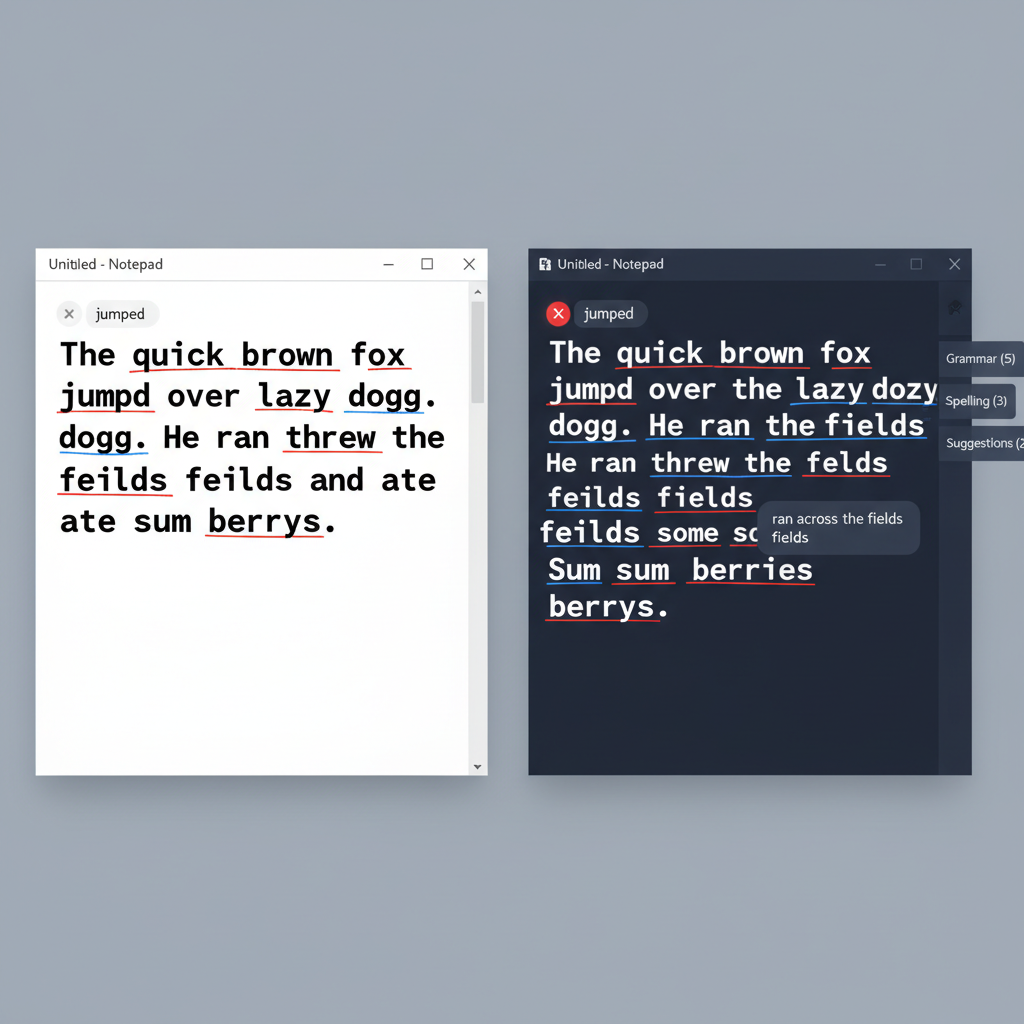
Finally, lack of customization and learning capabilities is another significant drawback. Native features often provide minimal control over dictionaries or the ability to learn from your unique writing style and frequently used vocabulary. This means it struggles to adapt to industry-specific jargon, personal shorthand, or multilingual typing, leading to frustrating incorrect corrections or missed opportunities for efficiency. For users who type extensively, a system that learns and evolves with them is invaluable.
Introducing AutoCorrect PC: Your Smart Writing Assistant for Windows
Given the limitations of native Windows features, dedicated third-party solutions have emerged to provide a truly comprehensive writing experience. Among these, AutoCorrect PC stands out as a smart writing assistant designed specifically for Windows users, aiming to revolutionize how you type and communicate. It addresses the core issues of inconsistency and limited functionality by offering a system-wide approach to writing enhancement.
AutoCorrect PC isn't just about fixing typos; it's an integrated suite of tools that work together to streamline your entire writing process. Imagine having:
- System-Wide Autocorrect: Misspelled words are corrected automatically as you type, not just in specific applications, but anywhere on your desktop, in any app, and any text field. This eliminates the frustration of inconsistent assistance.
- Predictive Text and Word Completion: Start typing a word, and AutoCorrect PC provides instant suggestions to finish it. After you complete a word, it intelligently suggests the most likely next words, significantly reducing keystrokes and boosting typing speed. This feature is a game-changer for productivity.
- Grammar Correction: Beyond simple spelling, AutoCorrect PC catches grammar mistakes at the sentence level. It offers clean, contextual fixes, meaning you don't need to copy-paste your text into a separate grammar checker.
- AI Writing Capabilities: This is where AutoCorrect PC truly shines. It allows you to generate, rewrite, or expand text from a simple prompt or selected text. The results are inserted directly into your current application, making content creation and refinement incredibly efficient.
- Voice Typing (Speech to Text): For those who prefer to speak rather than type, AutoCorrect PC transcribes your voice directly into whatever application you're working in. This is a huge accessibility benefit and a time-saver for long-form content.
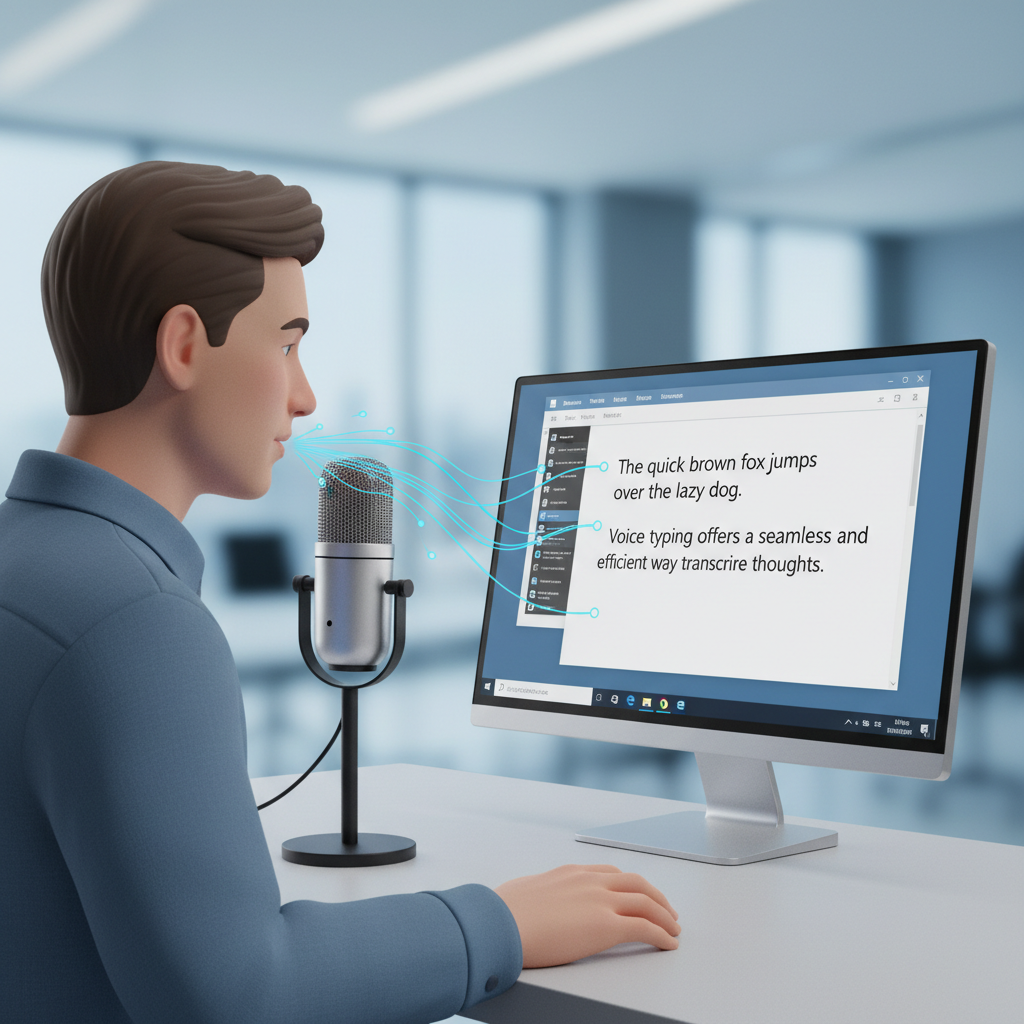
The core philosophy behind AutoCorrect PC is to keep you in your flow. By handling the mechanics of typing and correction in the background, it allows you to focus on your ideas and the content of your message, rather than getting bogged down by errors or slow input methods. This seamless integration across all your Windows apps makes it an indispensable tool for anyone who relies heavily on written communication.
Enabling and Optimizing AutoCorrect PC for Maximum Productivity
Once you've decided to enhance your writing experience with AutoCorrect PC, the next step is to enable its powerful features and optimize them to suit your unique workflow. The beauty of AutoCorrect PC lies in its system-wide integration and customizable settings, ensuring it works for you, not against you.
Installation and Initial Setup
The first step is to download and install AutoCorrect PC from the official website. The installation process is straightforward, and once completed, the application typically runs in the background, ready to assist you across all your Windows applications. Upon first launch, you may be guided through an initial setup that introduces key features and allows for basic preferences to be set.
Customizing Your Experience
To truly optimize AutoCorrect PC, delve into its settings. Here are some areas to focus on:
- Personalized Dictionary: AutoCorrect PC allows you to add custom words, names, or industry-specific jargon that might not be in a standard dictionary. This prevents it from constantly "correcting" words you use frequently and correctly. For instance, if you often use a specific product name or a unique abbreviation, add it to your dictionary.
- Text Expansion (Auto Replacement): This is a powerful productivity booster. Set up shortcuts for frequently typed phrases. For example, typing "eml" could automatically expand to your full email signature, or "addr" could become your complete mailing address. This significantly reduces repetitive typing.
- Predictive Text Sensitivity: Adjust how aggressively AutoCorrect PC suggests words. If you find it too intrusive, you can dial down the suggestions. Conversely, if you want maximum assistance, you can increase its sensitivity.
- Grammar Rule Customization: While AutoCorrect PC offers robust grammar checking, you might have specific stylistic preferences. Explore options to enable or disable certain grammar rules based on your writing style or the requirements of your work.
- Hotkey Configuration: AutoCorrect PC often provides hotkeys for quick access to features like word prediction or AI writing prompts. Customizing these hotkeys to fit your muscle memory can save valuable seconds throughout your day.
Integrating with Your Workflow
The goal is seamless integration. AutoCorrect PC works in virtually any text field, meaning you can leverage its features in:
- Email Clients: Draft professional emails faster and without errors.
- Messaging Apps: Ensure clear communication in Slack, Teams, or Discord.
- Word Processors: Complement your existing word processing tools with advanced AI and predictive features.
- Code Editors: While not primarily for coding, it can assist with comments or documentation.
- Web Browsers: Fill out forms, write blog posts, or compose social media updates with confidence.
By actively engaging with AutoCorrect PC's features and tweaking its settings, you transform it from a simple correction tool into a highly personalized and efficient writing partner, truly maximizing your productivity on Windows.
Advanced Features: AI Writing, Voice Typing, and Multilingual Support
Beyond basic autocorrect and predictive text, modern writing assistants like AutoCorrect PC offer a suite of advanced features that cater to the evolving needs of digital communication in 2026. These tools push the boundaries of what's possible, transforming your PC into a truly smart writing hub.
AI Writing: Your Personal Content Generator
The integration of AI writing is perhaps one of the most revolutionary features. AutoCorrect PC leverages artificial intelligence to assist you in various ways:
- Content Generation: From a simple prompt, the AI can generate ideas, draft outlines, or even compose entire paragraphs. This is invaluable for overcoming writer's block or quickly producing initial drafts.
- Rewriting and Rephrasing: Have a sentence or paragraph that doesn't quite sound right? Select the text, provide a prompt, and the AI can rewrite it, offering different tones, lengths, or levels of formality. This is excellent for refining your prose and ensuring clarity.
- Expansion and Summarization: Need to elaborate on a point? The AI can expand selected text. Conversely, it can summarize lengthy passages, helping you extract key information efficiently.
This AI capability is a powerful ally for content creators, students drafting essays, or business professionals needing to quickly articulate complex ideas. It's like having a co-writer accessible at your fingertips, directly within your application.
Voice Typing: Speak Your Thoughts into Existence
For many, typing can be a bottleneck. Voice typing, or speech-to-text, offers a fantastic alternative. AutoCorrect PC's voice typing feature allows you to speak naturally, and your words are transcribed directly into any text field on your Windows PC.
- Increased Speed: Speaking is often much faster than typing, especially for long-form content.
- Accessibility: This feature is a boon for individuals with typing disabilities, repetitive strain injuries, or anyone who finds typing physically demanding.
- Multitasking: Dictate notes or emails while performing other tasks that require your hands, such as reviewing documents.
The accuracy of voice typing has improved dramatically with advancements in AI, making it a reliable and efficient input method for a wide range of users.
Multilingual Dictionaries and Support
In an increasingly globalized world, multilingual support is crucial. AutoCorrect PC provides multi-language dictionaries, allowing you to switch between languages and receive accurate corrections and predictions. This is particularly beneficial for:
- Non-native English speakers: Who may write in multiple languages or frequently switch between them.
- International professionals: Communicating with clients or colleagues in different languages.
- Academic researchers: Working with sources or publishing in various linguistic contexts.
These advanced features collectively transform AutoCorrect PC into more than just a spell checker. It becomes a comprehensive writing partner, enhancing creativity, boosting productivity, and ensuring precision across all your digital communications.
Privacy and Local Processing: A Critical Consideration
In an era where data privacy is paramount, understanding how your writing assistant handles your information is crucial. Many cloud-based writing tools process your text on remote servers, raising concerns about data security and confidentiality. AutoCorrect PC takes a different approach by prioritizing privacy first through extensive local processing.
The core typing features of AutoCorrect PC, including autocorrect, word completion, next-word prediction, speech transcription, grammar correction, and dictionary lookups, are all performed locally on your computer. This means your everyday typing, your personal thoughts, and your sensitive documents never leave your device for these functions. This commitment to local processing offers significant advantages:
- Enhanced Security: Your data remains on your PC, reducing the risk of it being intercepted, stored, or analyzed by third parties. For professionals handling confidential information, this is a non-negotiable benefit.
- Offline Functionality: Since processing occurs locally, most of AutoCorrect PC's core features work seamlessly even without an active internet connection. This is ideal for remote workers, travelers, or anyone who needs to write in environments with unreliable connectivity.
- Faster Performance: Local processing can often be faster than sending data to a cloud server and waiting for a response, leading to a more responsive and fluid typing experience.
It's important to note that while the majority of features are processed locally, certain advanced functionalities, such as the AI Writer, do communicate with AutoCorrect PC's servers. However, this only happens when you explicitly use this feature. This selective approach ensures that the most sensitive aspects of your typing remain private, while still offering the power of cloud-based AI when you choose to engage with it.
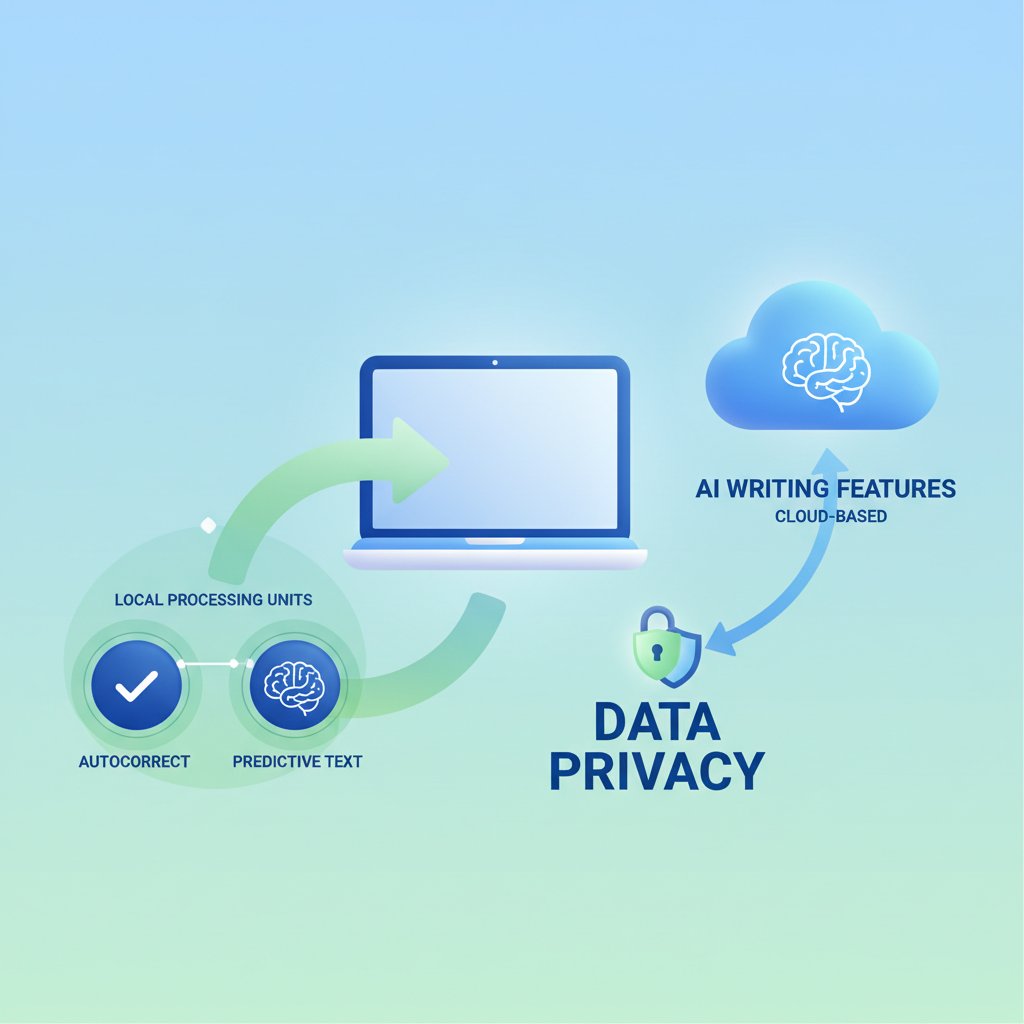
When choosing a writing assistant, always investigate its privacy policy and understand its data handling practices. AutoCorrect PC's commitment to local processing for its primary features provides peace of mind, allowing you to type with confidence, knowing your personal information is protected.
Comparison: AutoCorrect PC vs. Other Solutions
When considering a writing assistant for your Windows PC, it's helpful to understand how AutoCorrect PC stacks up against other available options, including built-in Windows features, browser extensions, and other popular writing tools. The key differentiator often lies in the scope and integration of their functionalities.
Here's a comparative overview:
| Feature | Windows Built-in | Browser Extensions (e.g., some Grammarly versions) | Cloud AI Writers (e.g., ChatGPT web) | AutoCorrect PC |
|---|---|---|---|---|
| Works Across Desktop Apps | ✗ | ✗ (browser only) | ✗ (usually web only) | ✓ |
| System-Wide Autocorrect | Basic/Inconsistent | Some (browser only) | ✗ | ✓ |
| Predictive Text | Limited | Limited (browser only) | ✗ | ✓ |
| Grammar Correction | Basic | ✓ (browser/some apps) | ✓ | ✓ |
| Voice Typing | Limited | Limited (browser dependent) | Some | ✓ |
| AI Writing (Generate/Rewrite) | ✗ | Some (browser/limited apps) | ✓ | ✓ |
| Multi-Language Dictionaries | Some | Some | Some | ✓ |
| Local Processing for Typing | ✓ | ✗ | ✗ | ✓ |
| Offline Functionality | ✓ | ✗ | ✗ | ✓ |
- Windows Built-in Autocorrect: As discussed, this offers basic spell-checking and limited predictive text, primarily within Microsoft's own ecosystem. It lacks system-wide consistency and advanced features.
- Browser Extensions: Tools like Grammarly's browser extension are excellent for web-based writing. They provide strong grammar and spelling checks, but their functionality is confined to the browser environment. They don't extend to your desktop applications like Word, Notepad, or specialized software.
- Cloud AI Writers: Platforms like ChatGPT are powerful for generating and rewriting text, but they are typically web-based and require you to copy-paste content in and out of your applications. They are not integrated into your typing flow.
- AutoCorrect PC: This solution is designed from the ground up to provide a system-wide writing assistant for Windows. It brings together all the essential features, from autocorrect and predictive text to grammar correction, AI writing, and voice typing, ensuring a consistent and powerful experience across all your desktop applications. Its emphasis on local processing for core features also sets it apart in terms of privacy and offline capability.
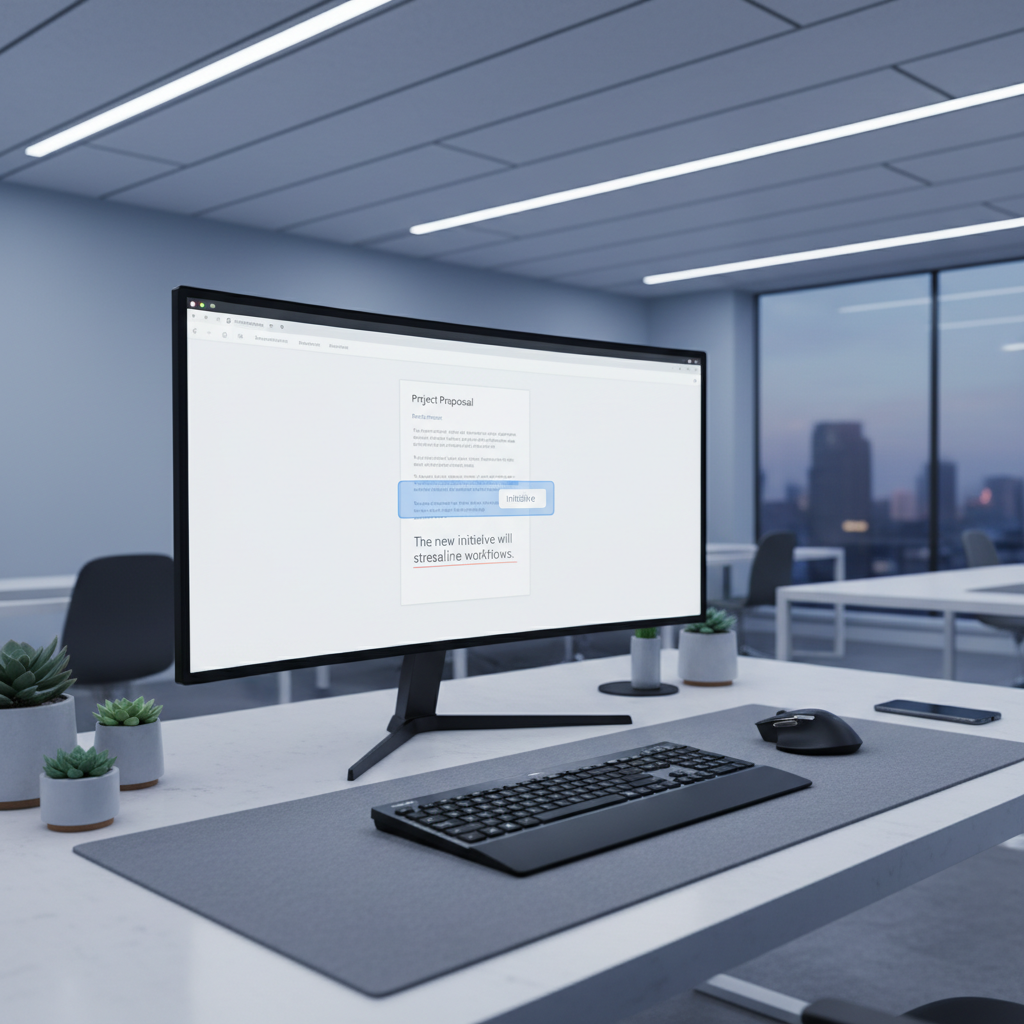
The choice depends on your specific needs. If you primarily write within a web browser, a browser extension might suffice. However, if you're a Windows user who types across a multitude of desktop applications and requires a truly integrated, smart, and privacy-conscious writing assistant, AutoCorrect PC offers a unique and compelling solution. It's built for those who want to type faster, cleaner, and smarter, everywhere on their PC.
Conclusion
In 2026, the question of whether there's effective autocorrect on PC is no longer about basic spell-checking, but about a comprehensive, intelligent writing assistant that integrates seamlessly into your digital life. While native Windows features offer a starting point, they often fall short of the demands of modern users who work across diverse applications and require more than just simple corrections.
Tools like AutoCorrect PC represent the future of writing on Windows. By providing system-wide autocorrect, advanced predictive text, intelligent grammar correction, powerful AI writing capabilities, and convenient voice typing, it transforms how you interact with your computer. It allows you to type faster, communicate more clearly, and produce higher-quality content with less effort, all while prioritizing your privacy through local processing. Optimizing these features through personalized dictionaries and custom settings further enhances your productivity, making your PC a truly smart writing hub.
Frequently Asked Questions
Q1: Does AutoCorrect PC work in all Windows applications?
Yes, AutoCorrect PC is designed to work system-wide, meaning it functions in virtually any application or text field on your Windows PC, including email clients, web browsers, word processors, messaging apps, and specialized desktop software.
Q2: Is AutoCorrect PC only for English, or does it support other languages?
AutoCorrect PC offers multi-language dictionaries and support, allowing you to switch between different languages for accurate autocorrection, predictive text, and grammar checking.
Q3: How does AutoCorrect PC handle my privacy?
AutoCorrect PC prioritizes privacy by processing most of its core typing features (autocorrect, predictive text, grammar correction, voice typing) locally on your computer. Your everyday typing data does not leave your device for these functions. The AI Writer feature communicates with servers only when explicitly used.
Q4: Can I customize the autocorrect suggestions and add my own words?
Absolutely. AutoCorrect PC allows you to add custom words to its dictionary and create text expansion shortcuts for frequently used phrases, ensuring that the suggestions and corrections are tailored to your specific writing style and vocabulary.
Q5: What's the difference between AutoCorrect PC and built-in Windows autocorrect?
Built-in Windows autocorrect is often inconsistent and limited to certain Microsoft applications or basic text fields, primarily offering simple spell-checking. AutoCorrect PC provides a comprehensive, system-wide solution with advanced features like predictive text, grammar correction, AI writing, and voice typing, working across all your Windows applications.
Q6: Do I need an internet connection for AutoCorrect PC to work?
Most of AutoCorrect PC's core typing features, such as autocorrect, predictive text, and grammar correction, work offline because they are processed locally on your device. The AI Writer feature, however, requires an internet connection to function.
Q7: Can AutoCorrect PC help with grammar as well as spelling?
Yes, AutoCorrect PC includes robust grammar correction capabilities that identify and suggest fixes for grammatical errors at the sentence level, providing contextual improvements to your writing.
Q8: Is there a free trial available for AutoCorrect PC?
Please visit the official AutoCorrect PC website for information on available trials or demo versions.
Ready to Transform Your Typing Experience?
Don't let inconsistent autocorrect or slow typing hold you back. Upgrade to a smart writing assistant that works seamlessly across your entire Windows PC. Experience the power of system-wide autocorrect, predictive text, grammar correction, AI writing, and voice typing.
Related Posts
Best Text-to-Speech Software for Windows in 2026
Discover the top text-to-speech (TTS) software for Windows in 2026, offering natural voices, advanced features, and seamless integration to boost accessibility, productivity, and learning.
Read post →Top Productivity Software for Windows: A 2026 Buyer's Guide
Discover the best productivity software for Windows in 2026, focusing on AI writing assistants, system-wide autocorrect, and privacy. This guide helps you choose tools that enhance writing, streamline workflow, and save time.
Read post →Best Free Productivity Tools for Windows in 2026
Discover the top free productivity tools for Windows in 2026, featuring advanced AI, intelligent automation, and intuitive interfaces to streamline your workflow and boost efficiency. Learn about writing assistants, predictive text, grammar correction, and voice typing.
Read post →Want system-wide predictions, autocorrect, and voice typing on Windows?